Site details
Settings → Site details is the companion plugin's one screen for the facts the whole site shares: where you are, when you are open, the questions every learner asks, how people register and where else the site hands them over. A field changed here changes every page that prints it, so nothing has to be found and retyped page by page. Nothing on this screen is sent anywhere.
The screen is in titled sections with a list of them at the top. Its Guide tab says which field is behind which part of a page. It exists only while Lumina Edu Core is active.
Where you are
| Field | Where it shows |
|---|---|
| Street, City, Region or province, Postal code, Country | The contact record on Contact, the footer's Visit and hours column, the visit strip on Campuses, Contact and A week at Northline |
| Latitude, Longitude | Only the directions link, for the phone's own map app. No map is ever embedded |
| Phone | The header's telephone, the footer, the contact record, the visit strip. Printed as a link a phone can press |
| The footer and the contact record. An enquiry about a program or a consultation is meant to arrive here |
With the plugin active and a field empty, the line is left out; nothing of the example school's is printed in its place.
When you are open
The office or front-desk hours: when somebody reaches a person. Session times are not read from here; each session carries its own schedule.
- Opening hours is one line, written the way it is written on the door:
Mon–Thu 10:00–21:00 · Sat 09:00–16:30. - Opening hours, day by day are rows, one for each day or each run of days with the same hours: From (a weekday), To (leave empty for a single day), Opens and Closes on the 24-hour clock, and Where, the site or sites the row is for when the hours are not the same everywhere. Add, reorder and remove rows with the buttons under the list.
Once a row is recorded, the rows are the record: the one-line version is written from them
everywhere it is printed, so the footer, the contact record and the chart can never give two
answers. With no rows, the line is printed as you wrote it, and the chart is drawn from it only when
it is written in the Mon–Thu 10:00–21:00 · … form.
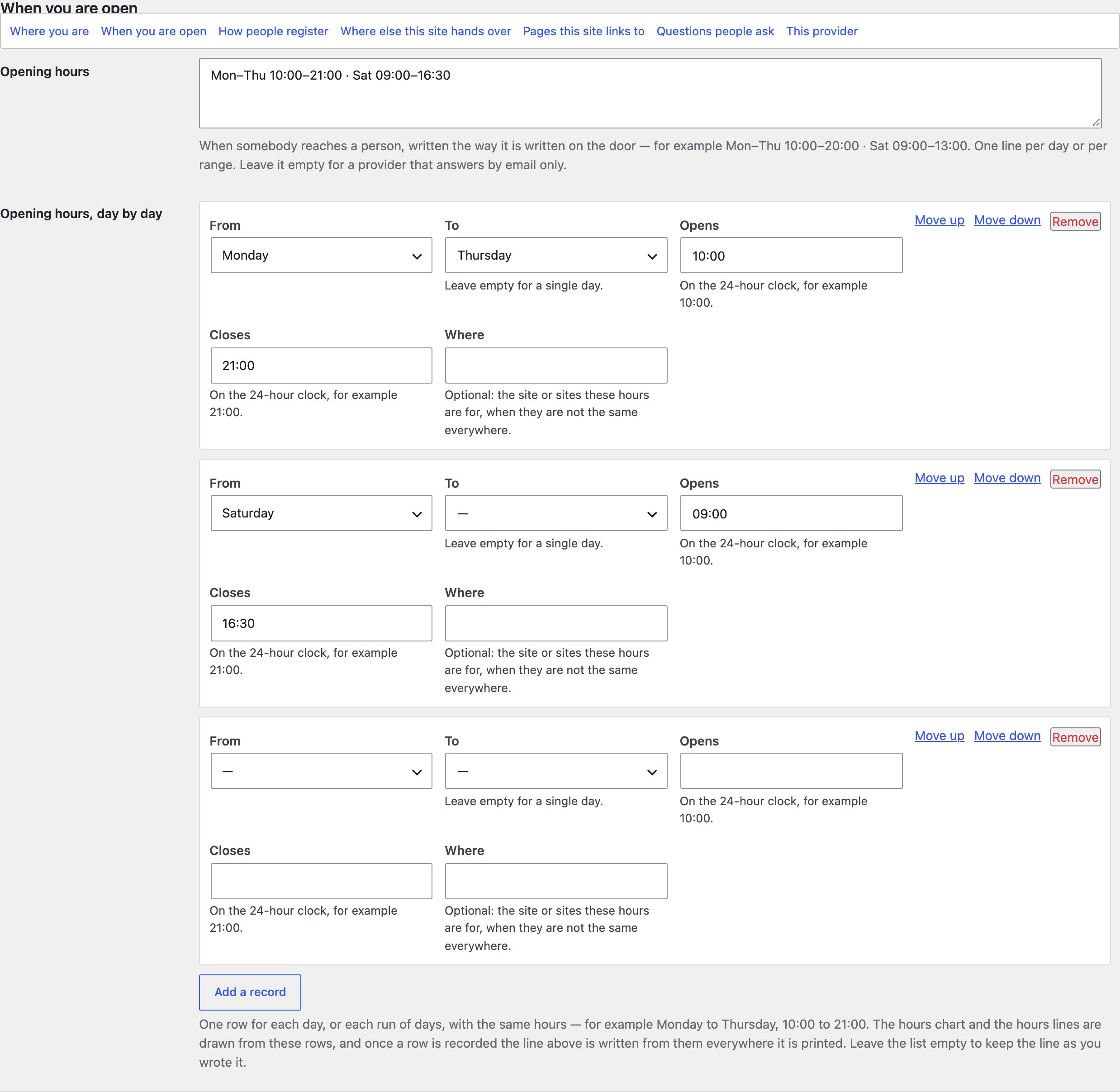
The hours show in:
- the footer's Visit and hours column, the contact record and the visit strip;
- The opening hours, drawn on A week at Northline: the week as bars along the day;
- the College home's night band, as ledger lines.
Bound lines
Four pages state the hours inside a sentence of their own: Sessions, For teams, Book a consultation and the title banner of A week at Northline. Each of those lines is bound to Site details: it is an ordinary paragraph that prints the hours from this screen whenever the page is shown. In the editor it shows the current hours too, and it is not typed over; change the hours here and every bound line follows. If you rewrite one of those paragraphs as plain text, it stops following.
How people register
The registration and consultation service the action buttons hand over to, and the name a learner is shown before they leave (for example Register on Northline Bookings). A program or a session can name its own; what is recorded here is what a program starts from when it names none. This site never takes an enrolment, a consent or a payment itself. Connecting your own services explains the order.
Where else this site hands over
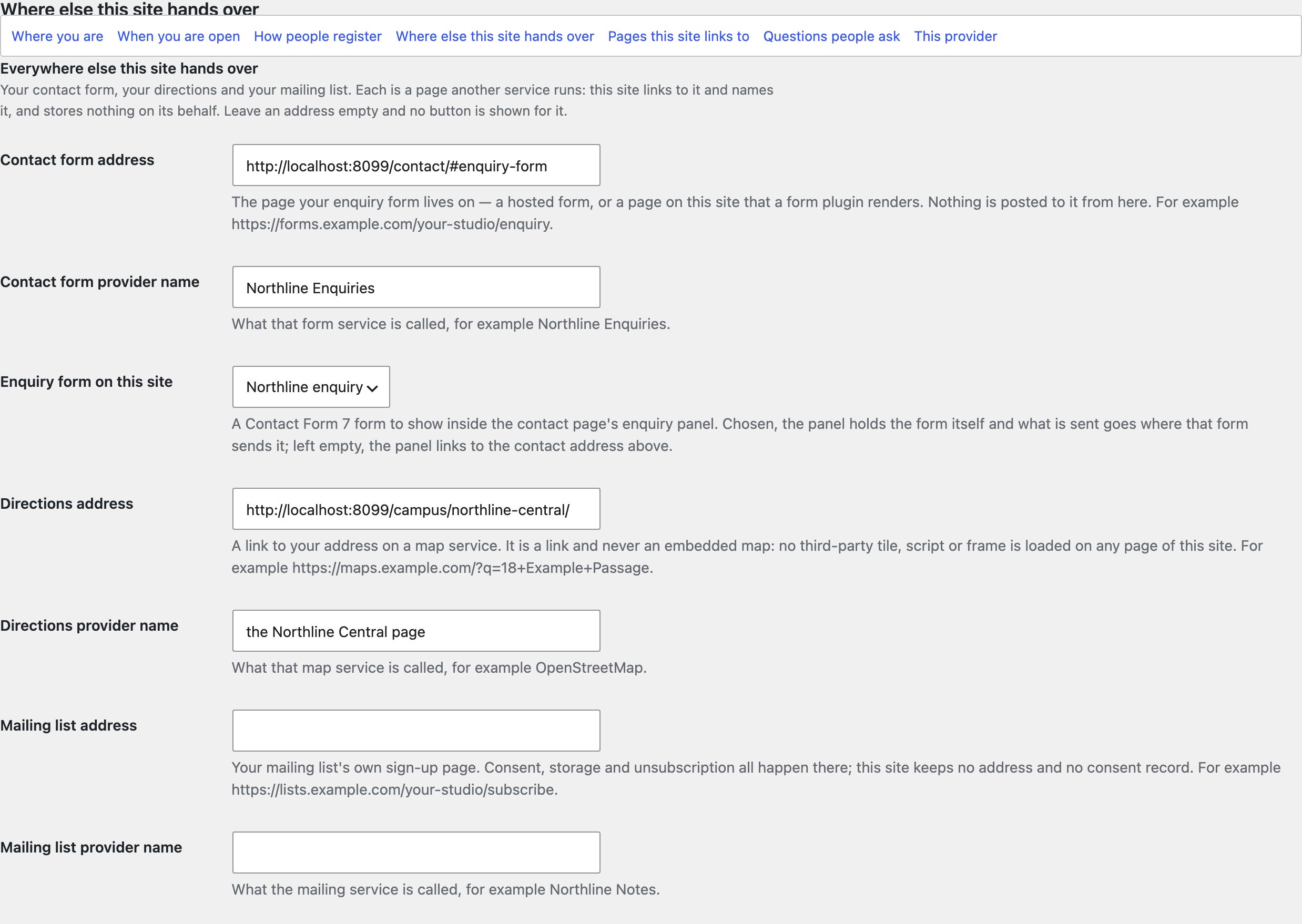
The other services a visitor is sent to, each an address and the name it is shown under:
- Contact — the address the contact actions lead to, and its name.
- Enquiry form on this site — see the contact form below.
- Directions — a "Get directions" link beside your address: a link, never a map.
- Mailing list — the footer's "Join the mailing list" link. Nothing is collected on this site.
- Destination profile — leave it on Placeholders; see Destination profiles.
Leave an address empty and no button is shown for it.
The contact form
Enquiry form on this site chooses a Contact Form 7 form to show inside the enquiry panel on the Contact page. With a form chosen, the panel holds the form itself, and what is sent goes where that form sends it. With none chosen, with Contact Form 7 inactive, or with the form deleted, the panel links to the contact address above instead.
- Install and activate Contact Form 7 and publish a form (its default form is fine to start with).
- Settings → Site details → Where else this site hands over → Enquiry form on this site: choose the form. Save Changes.
- Open Contact while logged out, send one enquiry, and check that it arrived. Install Flamingo if you want a copy of every enquiry kept in WordPress.
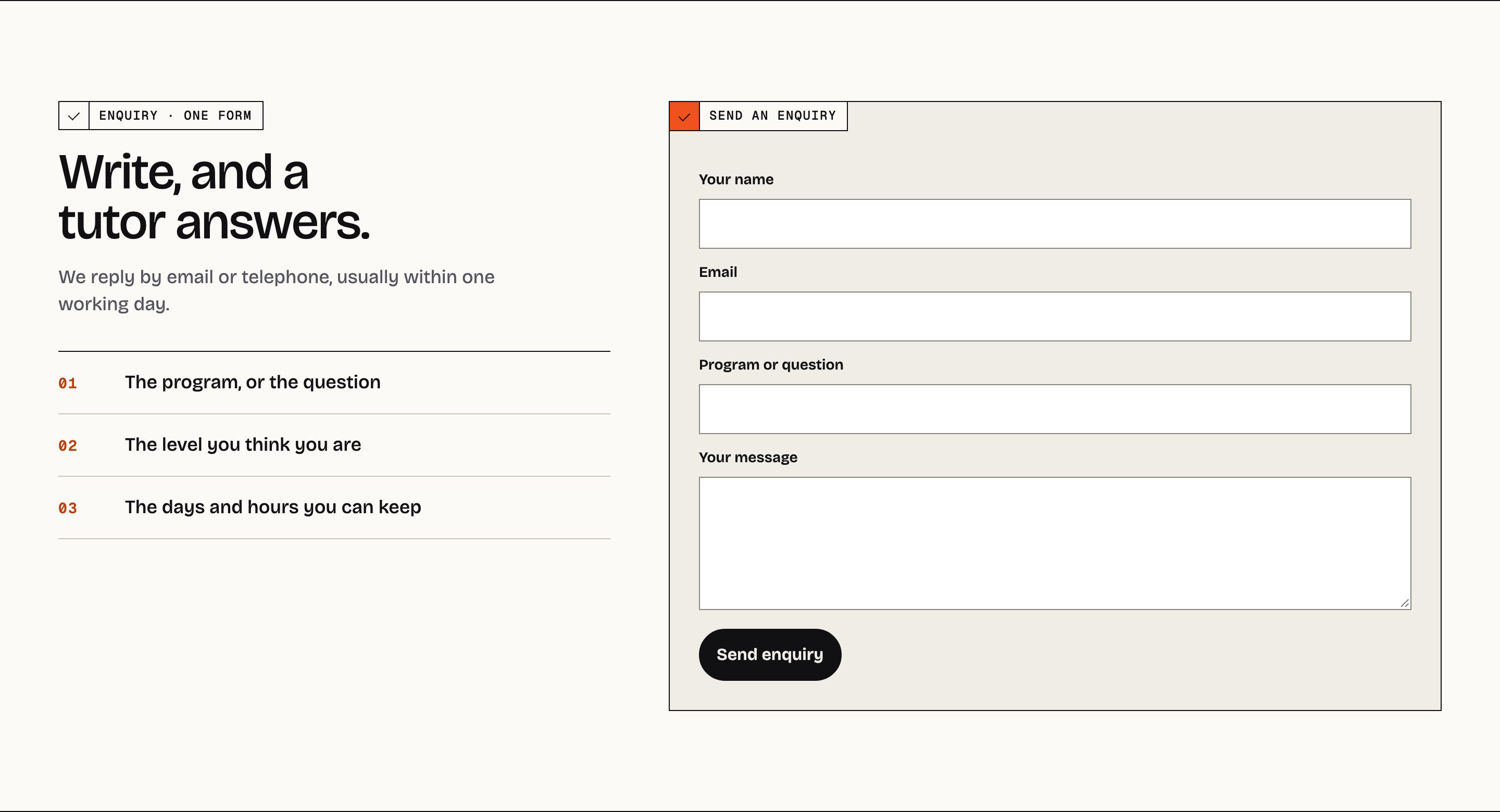
The enquiry panel shows no notice about demos or test data. Mail is Contact Form 7's job: see Registration, forms and privacy.
Pages this site links to
Five pages the shipped sections name: the Program directory, Consultation, Questions,
Upcoming sessions and Program comparison. Name them here and you can call those pages
whatever you like, in any language; leave one empty and the published page with the matching English
slug (programs, consultation, faq, sessions, compare-programs) answers instead. The demo
import fills them in.
This provider
What is true of your school and of nowhere else: the hiring line (tick We are hiring, give the role and where to write; untick it and the whole line disappears) and the Instagram handle. Both print in the footer.
Questions people ask
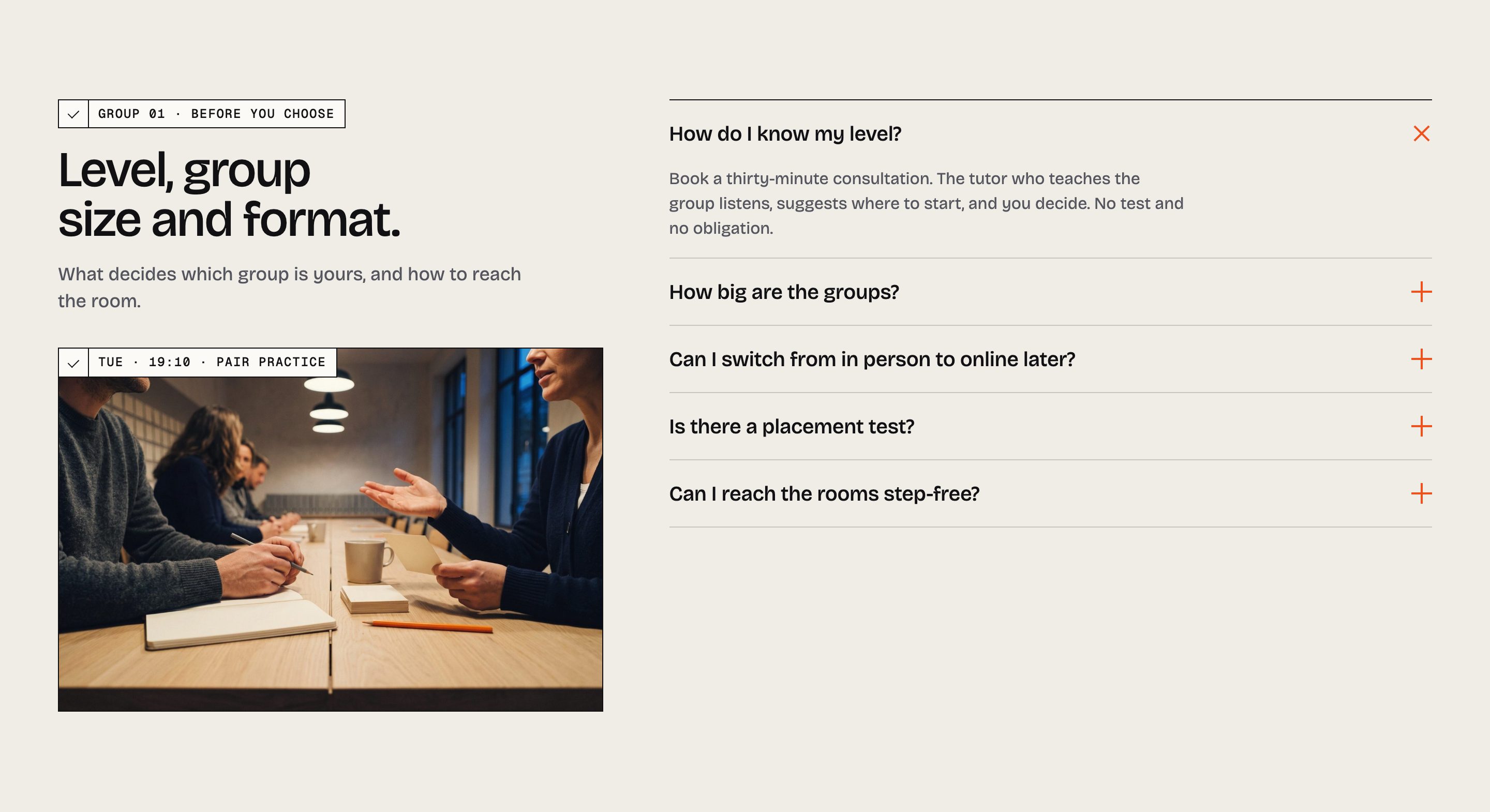
Questions and answers are the questions every learner asks, whatever they study: levels, group size, payment, certificates. Each row is a Question, an Answer, and Asked: Before choosing a program, Once there is a place in a group, or Any time. A question about one program belongs on that program's own FAQ instead.
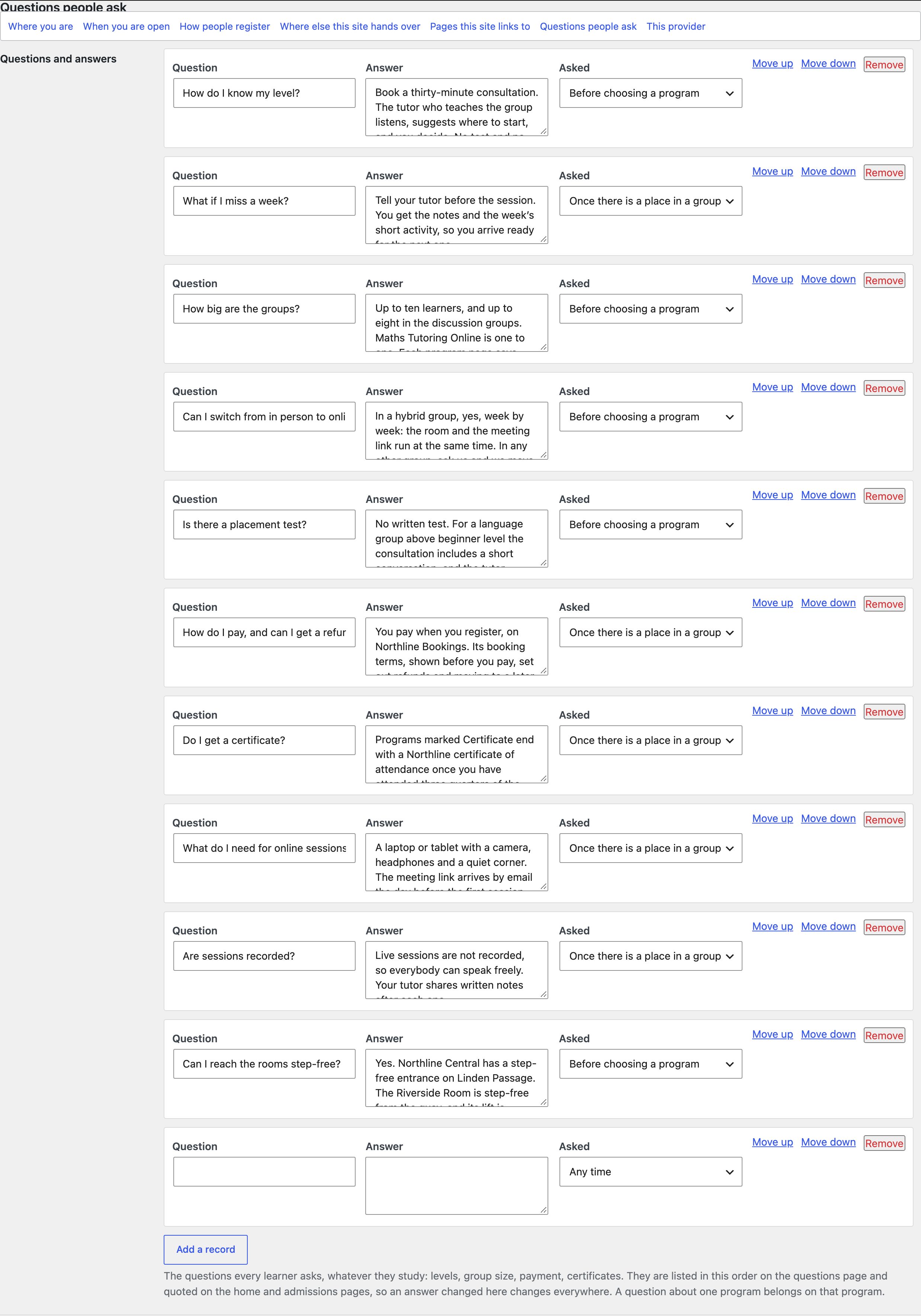
They are written once and quoted everywhere:
| Where | What it takes |
|---|---|
Questions (/faq/) |
Every question, in two groups: before you choose and once you have a place, in the order of the rows |
| Before you book, on the Studio home | The first four |
| How a session runs, on the Studio home | Three answers quoted as numbered facts: how big the groups are, what happens after a missed week, whether sessions are recorded |
| The question rows that close How to apply, Book a consultation and Deadlines | Three questions each, chosen by the section, from these rows or from a program's own FAQ |
A section asks for its questions by their wording; a question your site does not have is left out and the section fills from the rest, so a school with its own questions still gets full sections. Change an answer here and it changes on every page that quotes it.
With the plugin off
Without Lumina Edu Core there is no Site details screen, and the sections that read it print the example school's words: its telephone in the header, its address and hours in the footer, its ten questions. Replace them by activating the plugin and filling in this screen, or edit the words in the blocks by hand.