Photographs
Photographs are part of the design: a full-bleed class or room in every hero, a picture for every department and campus, pictured programs, tutors at work, a week of the school in pictures. This page says where each photograph is set, how the theme frames it, what a record without one shows, and where the demo's pictures come from.
The slot
Every photograph sits in a slot: a 1.5 px ruled frame with a label on a tab above it, the
rail, set in the mono face like a timetable entry (TUE · 18:30 · CENTRAL). A small cell leads
the rail and fills Signal orange when the pointer is over the slot, or when the slot is the match.
Section eyebrows and breadcrumbs are cut as the same rail. A slot is a ruled frame, never a shadowed
card.
What the rail says depends on where the slot is:
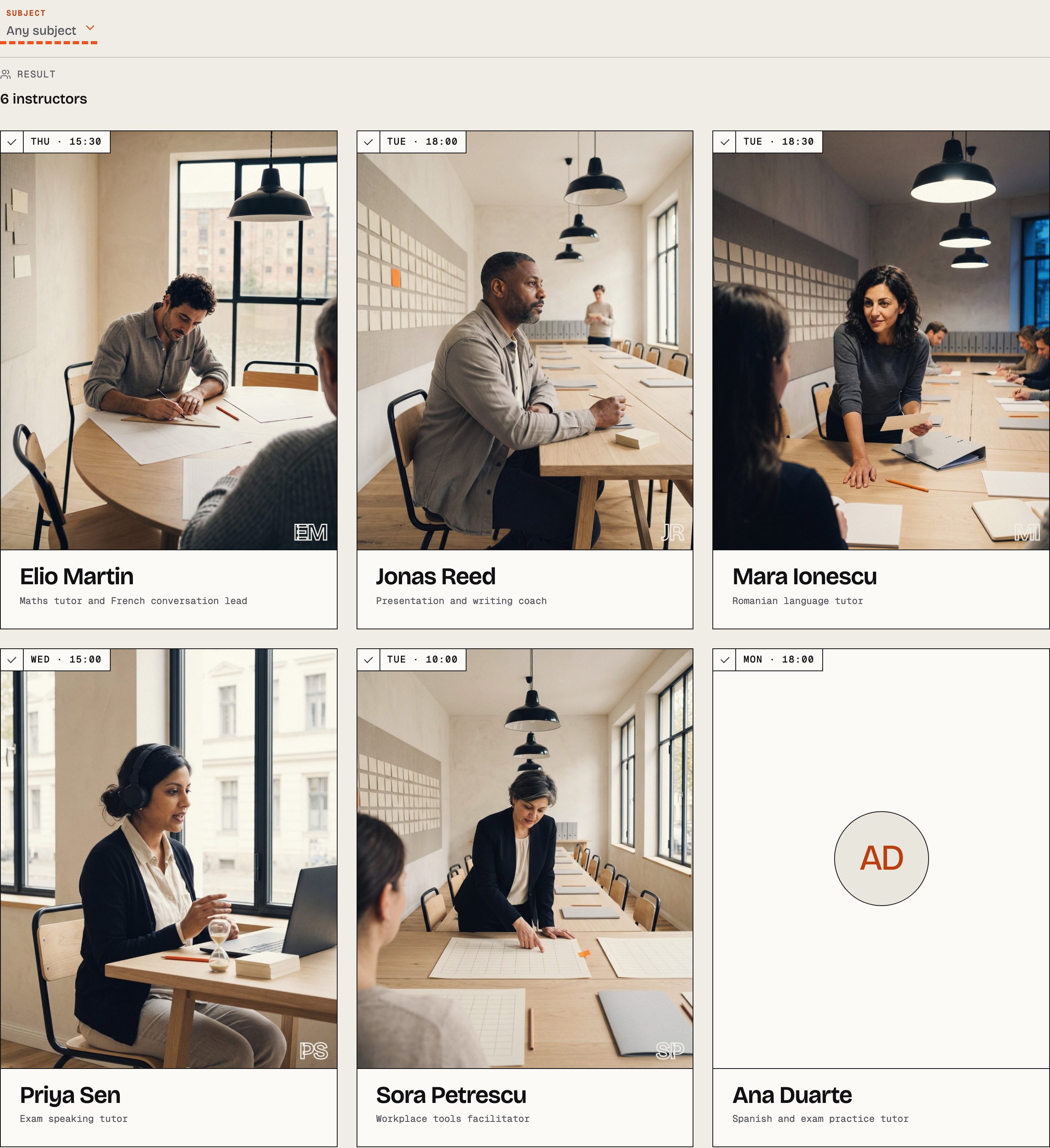
- In a section that reads records (the tutors, the programs with a picture, the planner), the rail is read from the record: the day and hour of the tutor's next taught session, the program's next group. It moves on when that session passes.
- In a section you type (the hero's caption, On the table, A week at Northline), the rail is text on the page. Select it and type over it.
The demo's photographs are not in your download
The Northline demo uses sixty photographs. They are:
- AI-generated, to one art direction: one believable school, two lights (overcast day and the evening class under the pendants), no text in any image, no screens or whiteboards, no real people and no brands;
- hosted by tailthemes.com, under
https://tailthemes.com/wordpress/demo/lumina-edu/v3/; - fetched by the importer: your server requests each file from ours once, during the import, saves it into your Media Library with its alternative text, and points the pages and records at the local copy. After that nothing is hot-linked;
- inside no zip: not the theme, not the plugin, not the package;
- not yours to keep using. They are there so the demo looks like the demo. Replace them with your own photographs before you launch.
If your server cannot reach ours, the import still completes, and every slot whose file did not arrive shows the theme's stand-in plate. Run the import again once the connection works.
The stand-in plates
With nothing imported, every pattern still looks composed. The theme ships one small SVG for each of
the sixty photographs, under lumina-edu/assets/img/plates/v3/, named for the picture it stands in
for: a tinted field at the right proportions. Apart from the screenshot, these plates are the only
images inside the theme.
The theme finds a demo photograph by name: each imported picture records which shot it is, and a pattern, the footer strip or the 404 page shows it where the library holds it and the plate where it does not. For you that means one thing: when you insert a pattern, replace its pictures with your own. Select each Image or Cover and Replace.
Where each photograph is set
| Photograph | Where you set it | Where it shows |
|---|---|---|
| A program's picture | Programs → the program → Featured image | The program's own page (its banner), Programs with a picture, the planner with pictures, Six programs for work, the compare column |
| A department's picture | Programs → Departments → the department → Featured image | The departments page, Four departments on the home, the department's own page |
| A campus's two pictures | Featured image, and Second photograph on the campus's Identity tab | The campus directory sets the two side by side, each labelled with its caption; the featured image leads the home's places and the campus page |
| An instructor's portrait | Instructors → the instructor → Featured image | The directory, the tutors row, the faculty, the program's instructor, the instructor's page |
| An instructor's second photograph | Second photograph on the instructor's Profile tab | The instructor's page, under the biography |
| A resource post's picture | Posts → the post → Featured image | Its row in every list, its slot on the homes, and its own page |
| A page's banner | The Cover at the top of the page, or the page's Featured image on Programs, Sessions and Instructors | See Title banners |
| A hero, a band, a mosaic | On the page: select the Cover or Image and Replace | Set the Cover's focal point so the subject survives the phone crop |
| The footer's strip of six | Appearance → Editor → Patterns → Template parts → Footer | See The footer |
A caption you give a campus photograph in the Media Library is what its label prints in the campus directory.
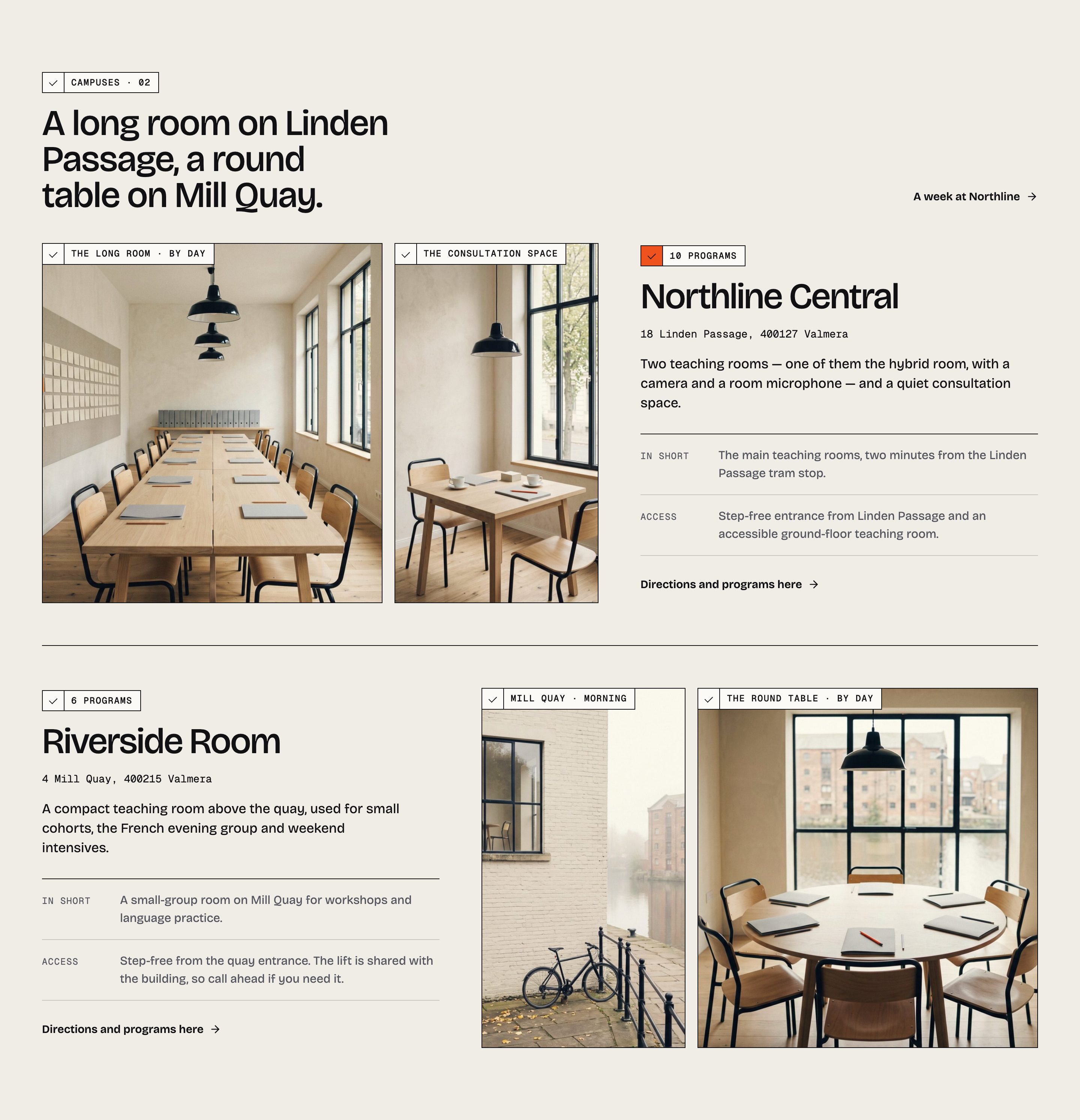
Keep in frame
The same photograph is cropped differently in a wide banner, a square slot and a phone screen. Open
the picture in Media, and in its details set Keep in frame to the point a crop should centre
on, across then down: 70% 50% keeps a subject right of the middle. Empty keeps the middle.
A record without a photograph
No section depends on a photograph.
- An instructor without a portrait is drawn as a monogram — the initials in the display face — in the same slot, so the row keeps its rhythm and nothing reads as a broken image. With a portrait, the monogram stays as an outlined mark in the slot's corner. In the demo, Ana Duarte has no portrait on purpose.
- A program without a picture is complete: the board, the lists, the compare page and its own page all work without one, and its page opens on the ink band. Sections built of pictures (Programs with a picture, the planner) show only the programs that have one. Nine demo programs have none.
- A post without a featured image keeps its place in every list as a typographic slot.
Leave a picture empty rather than using a placeholder. A missing picture is designed for; a generic one is not.
Choosing your own
The demo was shot to one brief, and yours will look best to one too: your own rooms, empty and in session, by day and in the evening; learners from behind, in profile or as hands; tutors at work rather than posed; what a session leaves on the table. The demo carries no testimonials and no outcome claims, and a photograph should not imply one either — no certificates, graduation caps or results in the frame. Never show a child's face without the consent your organisation needs.
Alternative text
Every demo photograph arrives with alternative text describing what is in the frame. When you replace one, write your own: Media → the image → Alternative Text, or the Image block's own field. A record's picture (a program, a tutor, a campus) is printed with the alternative text its attachment carries.
Size and loading
The theme asks WordPress for the size it needs and lets WordPress build the srcset. The hero or the
title banner loads first; photographs further down the page are lazy-loaded, so a home with many
photographs does not fetch them all to draw its first screen. Upload photographs at about 2400 pixels
on the long side. Larger files are not shown larger; they only take longer to upload.