The three homes and the pages
The demo is one school with three home pages and fifteen inner pages behind one header. Every one of them is an ordinary WordPress page built from the theme's patterns, so every one can be rewritten, rearranged or deleted in the editor.
The three homes
One school, three ways in. Each home is a page pattern under Patterns → Full pages, and the import creates a page from each. They share one catalogue, one staff and one calendar; what differs is the order and the weight of the sections, and how each one opens.
| Home | Page and address | Its name in the menu | Made for | How it opens |
|---|---|---|---|---|
| Studio | Home, / (the front page) |
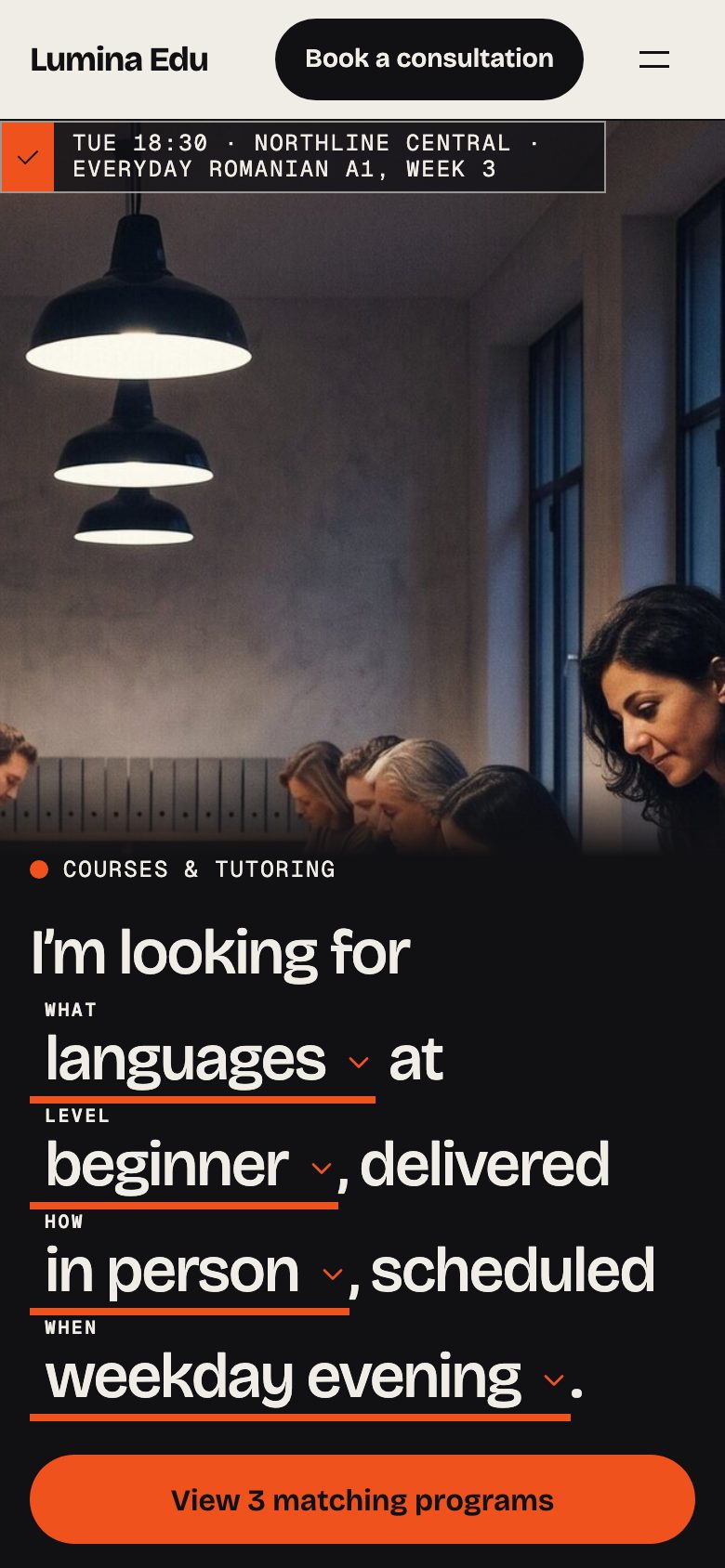
Studio | Evening courses and tutoring: tutoring centres, language schools, coaches | An evening class under the pendants, full-bleed; the finder sentence opens on languages · beginner · in person · weekday evening |
| Training | Training for teams, /home-training/ |
Training | Daytime and workplace programs: professional-skills academies, corporate training | The Saturday workshop by day; the sentence opens on communication · intermediate |
| College | Admissions at Northline, /home-college/ |
College | Admissions-led small colleges and professional institutes | The street front at blue hour; the filled action is How to apply, and the row over the photograph is the next registration deadline |
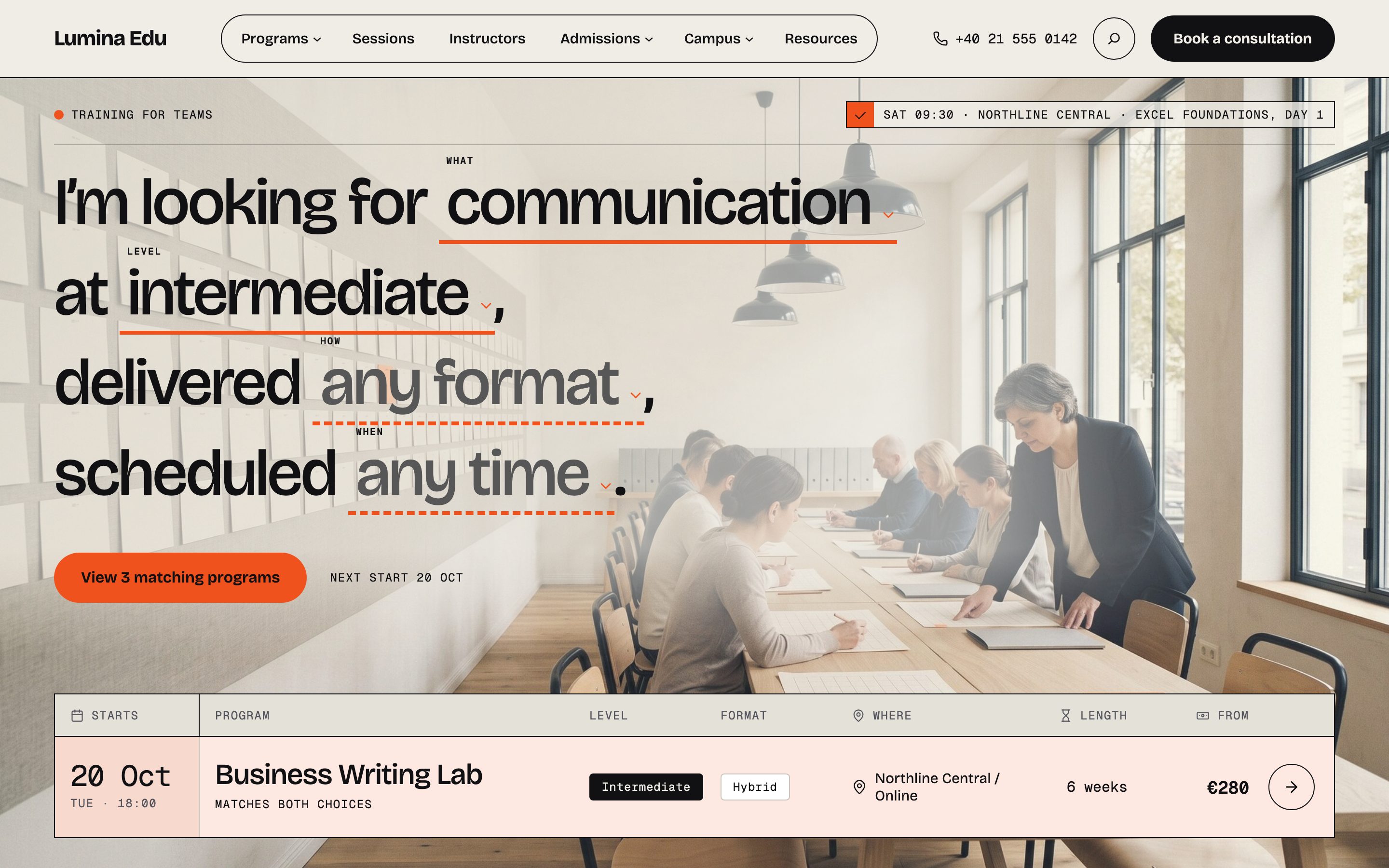
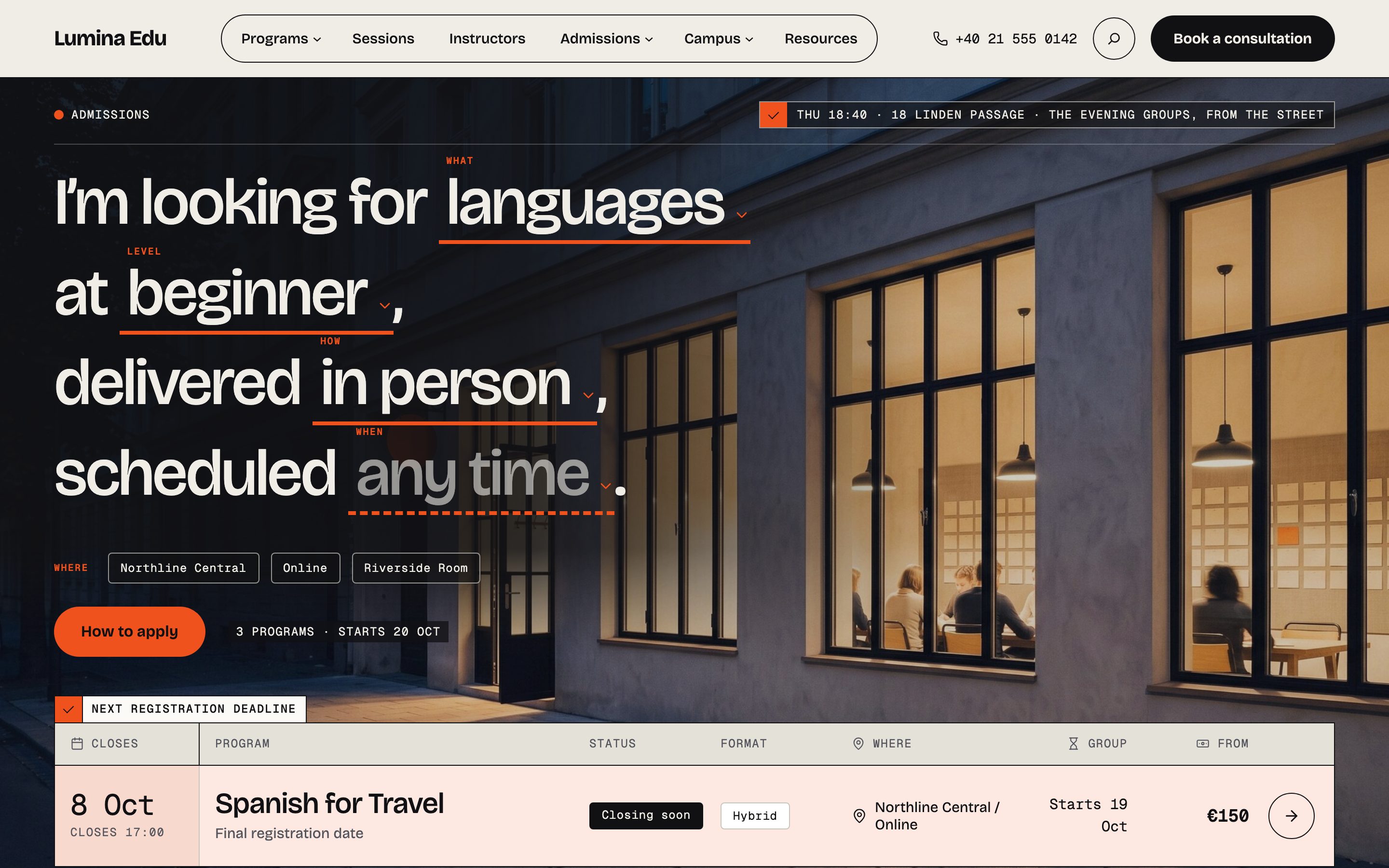
Each first screen is the same idea: the program finder is the heading, set over a photograph, and the best-fit departure row is pinned over the photograph's lower edge, so the question and its answer share the first screen. The finder, the board and compare explains it.
The sections of each home, in order:
Studio (/) |
Training (/home-training/) |
College (/home-college/) |
|---|---|---|
| Program finder hero | Program finder hero, by day | Program finder hero, admissions |
| The board, on the match tint | Cohort calendar | The next three deadlines |
| Four departments | Bring a group | Four departments and their heads |
| How a session runs | Six programs for work | How to apply |
| The week, on the planner | The board, by department | Campus band |
| Night band, the evening groups | Signal band, the team enquiry | The board, by award |
| Programs with a picture | How a program is built | Signal band, request information |
| Signal band, the consultation | Night band, the after-work groups | The faculty |
| The tutors, a row of slots | Three tutors and what they teach | Night band, the evening class and the hours |
| Two places | Two sites, side by side | A week at Northline |
| On the table | On the table | What a program costs |
| Before you book | From the resources | From the resources, as a ledger |
| From the resources | Questions teams ask | The week, on the planner |
Every home has one photographic night band and one Signal band: the orange band spent on a
decision (the consultation, the team enquiry, a request for information). Each home carries one h1,
in its hero.
Making another home the front page
- Settings → Reading → Your homepage displays → A static page.
- Homepage: choose Training for teams or Admissions at Northline instead of Home. Save Changes. The front page shows whichever page you choose; there is nothing else to switch.
- Move the homes you are not using to the bin, or keep one as a page of its own.
- The Start from group at the foot of the Programs menu lists the homes. It appears while a
published page has the address
home-trainingorhome-college, and its first item, Studio, always leads to your front page. If your front page is Training or College and you want the group gone, change that page's slug (for example towelcome) once the other homes are in the bin.
The homes use the Page without title template, because each opens on its own hero. That is what lets you swap one for another, duplicate it and reorder its sections without touching a template.
Building a home of your own
Pages → Add New Page, choose Page without title in the page's Template panel, and insert
sections from Patterns → Sections, or start from one of the three Full pages and drag. Keep
exactly one hero, because the hero holds the page's h1.
The fifteen inner pages
All of them open on a title banner. The header reaches every one; the second column says under which menu item.
| Page | Address | Under | Built from |
|---|---|---|---|
| Programs | /programs/ |
Programs | The finder sentence over the whole departure board, with the compare tray; the planner with pictures; next starts |
| Departments | /departments/ |
Programs | The four departments as large photograph slots, and the head who answers for each |
| Compare programs | /compare-programs/ |
Programs | A comparison already drawn — the featured programs, fact by fact — and how a visitor makes their own |
| Sessions | /sessions/ |
Sessions | Every session ahead as a ledger by month, every open group by the day it meets on the planner, and the tutors |
| Instructors | /instructors/ |
Instructors | The directory as slots with a subject filter, and a band on talking to the tutor first |
| How to apply | /admissions/ |
Admissions | Four steps as a line of stops with photographs, the finder board, three questions asked before a first registration |
| Deadlines | /deadlines/ |
Admissions | The next deadline as the banner's fact, the dated ledger, how a row is read, three questions about dates |
| Book a consultation | /consultation/ |
Admissions | Three steps beside the tutor who listens, two ways to have the conversation, who does what, three questions |
| For teams | /teams/ |
Admissions | What a closed group keeps, the programs that run as one, the enquiry as three stops, the tutors. No price list is invented |
| Campuses | /campuses/ |
Campus | Each site with two photographs, its address, access and directions; the rooms one by one; the visit strip |
| A week at Northline | /a-week-at-northline/ |
Campus | The day from the quay to the Saturday workshop, the evening from the lobby to the room after the last class, the opening hours drawn, the visit strip |
| About Northline | /about/ |
Campus | The approach in three principles, what the school holds counted, the two sites, the tutors |
| Questions | /faq/ |
Campus | Ten questions in two groups — before you choose, and once you have a place — and the way to a person |
| Contact | /contact/ |
Campus | The contact record beside the tram stop, the enquiry panel with the form, the visit strip |
| Resources | /resources/ (the posts page) |
Resources | The posts as a ledger with their photographs; one post stays without a picture by design |
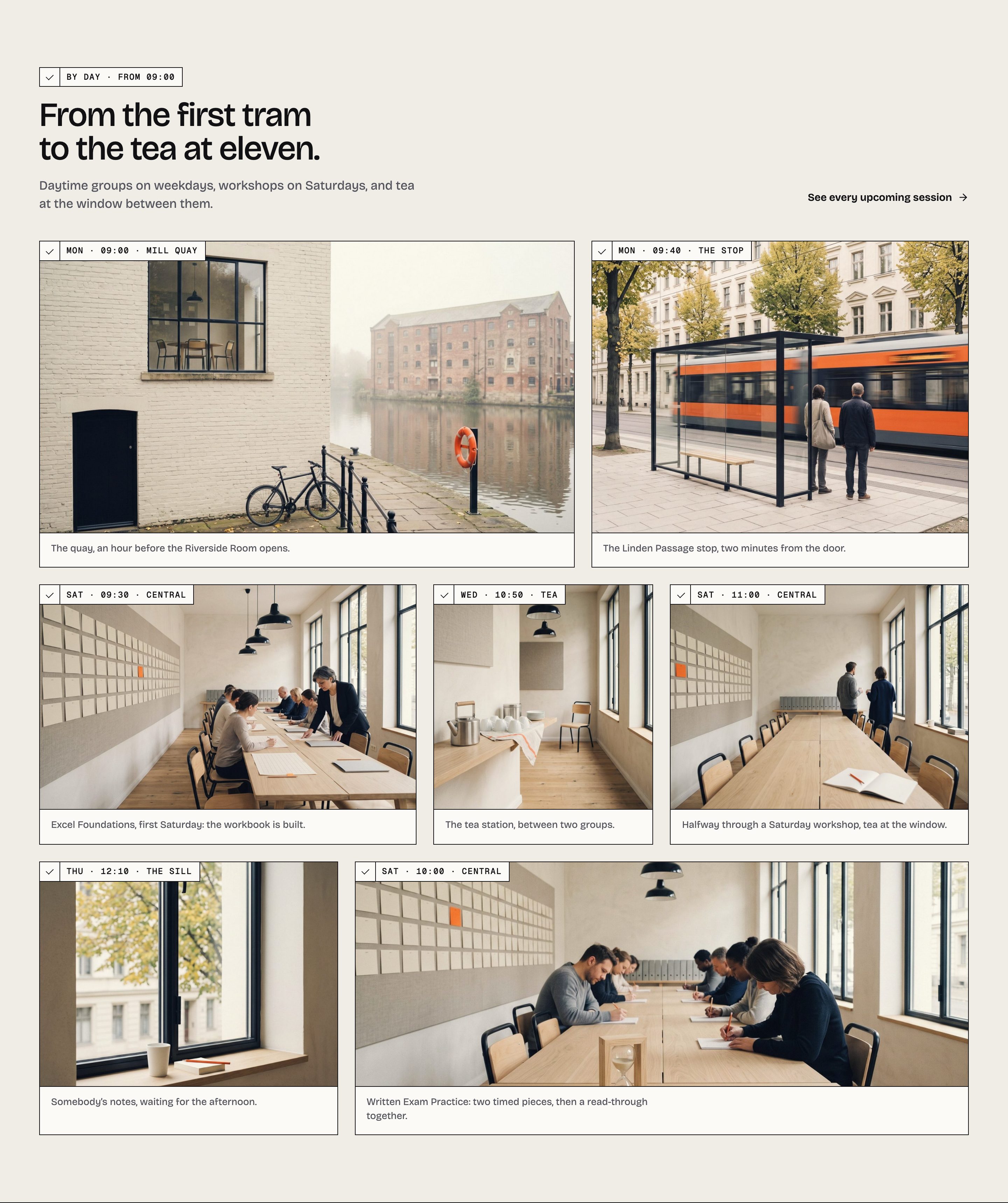
Each inner page closes differently, so no closing section repeats on more than three pages: next starts closes Programs, a program and a department; the visit strip closes Campuses, Contact and A week at Northline; the tutor seam closes Sessions, About and For teams; three question rows close How to apply, Deadlines and Book a consultation.
Designed, but not menu destinations:
- A program, an instructor, a department and a campus each have their own page
(
/program/<slug>/,/instructor/<slug>/,/department/<slug>/,/campus/<slug>/), opening on its own photograph in an ink band with the breadcrumb. They exist only while Lumina Edu Core is active. - A resource post, search results, the privacy policy and Page not found (the room after class).
Title banners
Every inner page opens on the same shape: a photograph under a flat ink wash, or the ink band, a
breadcrumb set as a slot rail (Home / the page), the page's title in the display face (the page's
only h1), one line of lede, and, where the page has one, its one live fact — the number of
programs and the next start on Programs, the next deadline on Deadlines.

There are two kinds, and you change them in two places:
- On most pages the banner is the first block of the page. Select the Cover and Replace the photograph; type over the title, the lede and the breadcrumb's last step. Set the Cover's focal point so the words stay on the dark side of the picture, and look at it at phone width.
- On Programs, Sessions and Instructors the banner is part of the template. It prints the page's own title, its Featured image as the photograph and its Excerpt as the lede. Change those on the page. A page with no featured image opens on the ink band.
Where a banner states a live fact, that line is read from your records while Lumina Edu Core is active, and left out when there is nothing to state. The Resources banner is drawn by the theme.
The header

The header is an 80 px ruled bar: the wordmark (your Site Title), six menu items in one capsule — Programs, Sessions, Instructors, Admissions, Campus, Resources — then the telephone, search, and Book a consultation as the filled button. Programs, Admissions and Campus open the pages under them; Programs ends with the Start from group of homes. Below the wide screen the capsule folds into a menu button; the telephone and the button are the last rows of the menu.
- Each item is printed only when its page exists. Delete Deadlines and it leaves the Admissions
menu; a menu with no page left disappears. The items find their pages by address (
programs,sessions,admissions,consultation, and so on), so keep those slugs or the item goes. - The telephone is Settings → Site details → Phone. With the plugin active and the field empty, no telephone is shown.
- Book a consultation leads to the page at
/consultation/; without that page it becomes Contact us.
To take the menu over yourself, Appearance → Editor → Patterns → Template parts → Header, select the Navigation block and choose the Northline primary navigation menu the demo created, or build your own. This saves your own copy of the header: from then on it shows what you saved, including the telephone line, until you change it or use Reset.
The footer
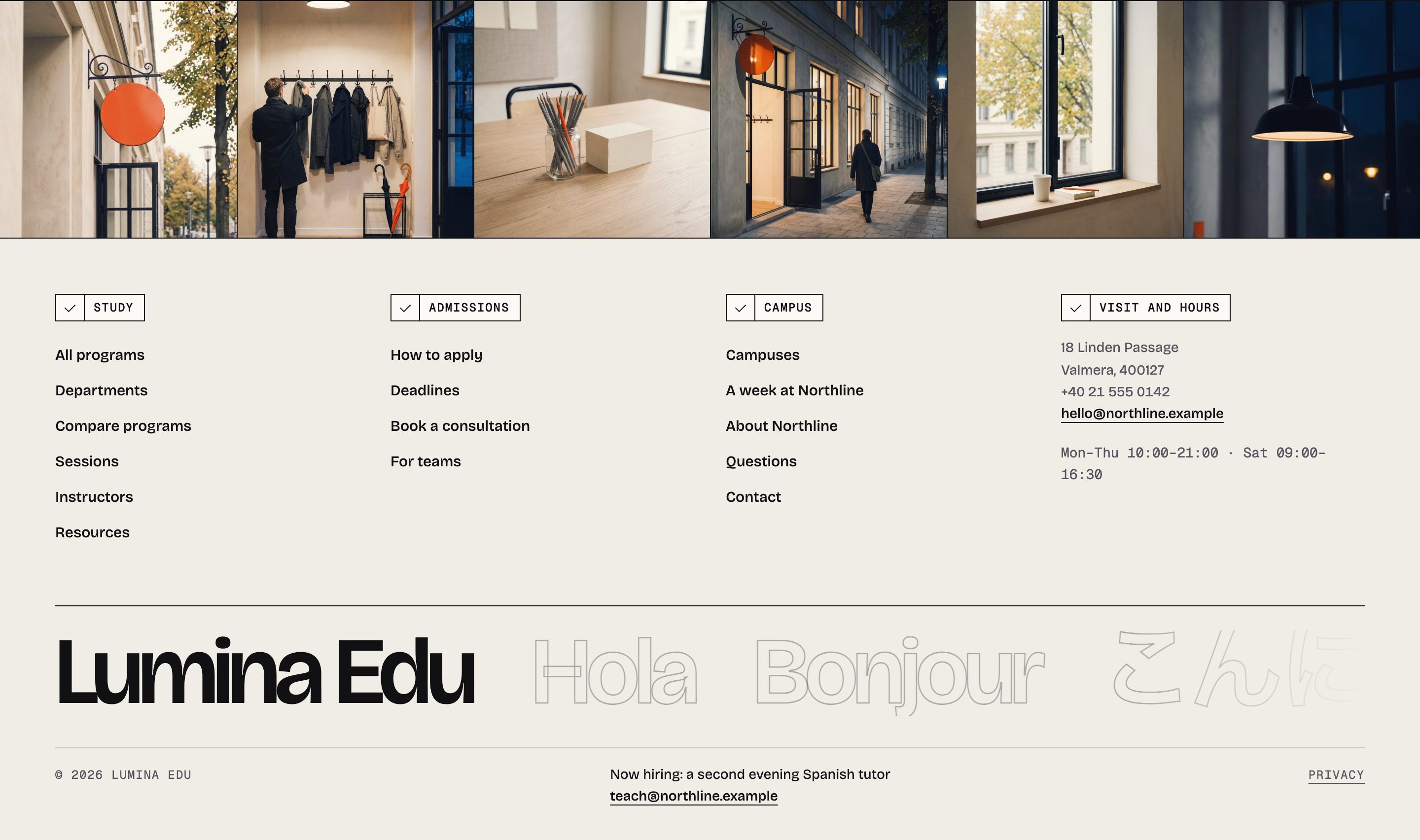
The footer is a strip of six photographs, four columns — Study, Admissions, Campus, and Visit and hours — and the wordmark set large with the outlined ribbon running after it. The first three columns list the pages that exist; Visit and hours prints the address, telephone, email and opening hours from Site details. The mailing-list link appears only when a mailing-list address is recorded in Site details.
The strip shows the demo's photographs once they are imported and the theme's stand-in plates on a site without them. To use your own, edit Template parts → Footer in the Site Editor and Replace each image. As with the header, that saves your own copy, which keeps the lines it was saved with; check the hours and the telephone after you change Site details, or use Reset to go back to the theme's footer.
Resources
Resources is WordPress's own posts: Posts in the admin, six notes in the demo. The posts page is
the page set at Settings → Reading → Posts page (resources in the demo). A post's photograph
in every list, and on its own page, is its Featured image; a post without one keeps its place as a
typographic slot. The homes' From the resources sections are the newest posts (three as slots, or
four as a ledger on College) and need no plugin.