Start with Lumina Edu
Lumina Edu is a WordPress block theme for tutoring centres, language schools, professional-skills academies, corporate training providers and small colleges. It gives a program catalogue one clear path: a visitor answers one sentence — what, at which level, how and when — sees the programs that fit on a departure board with their next start, compares up to three, and continues to your registration or consultation service.
Lumina Edu presents your catalogue; it is not a learning platform. It takes no enrolment, no payment and no booking, and it never claims a seat is free. The companion plugin, Lumina Edu Core, can show a Contact Form 7 enquiry form or a Simply Schedule Appointments calendar on a program page, or send the visitor to a Tutor LMS course or to your own registration page. Each of those keeps its own records. Connecting your own services explains each option.
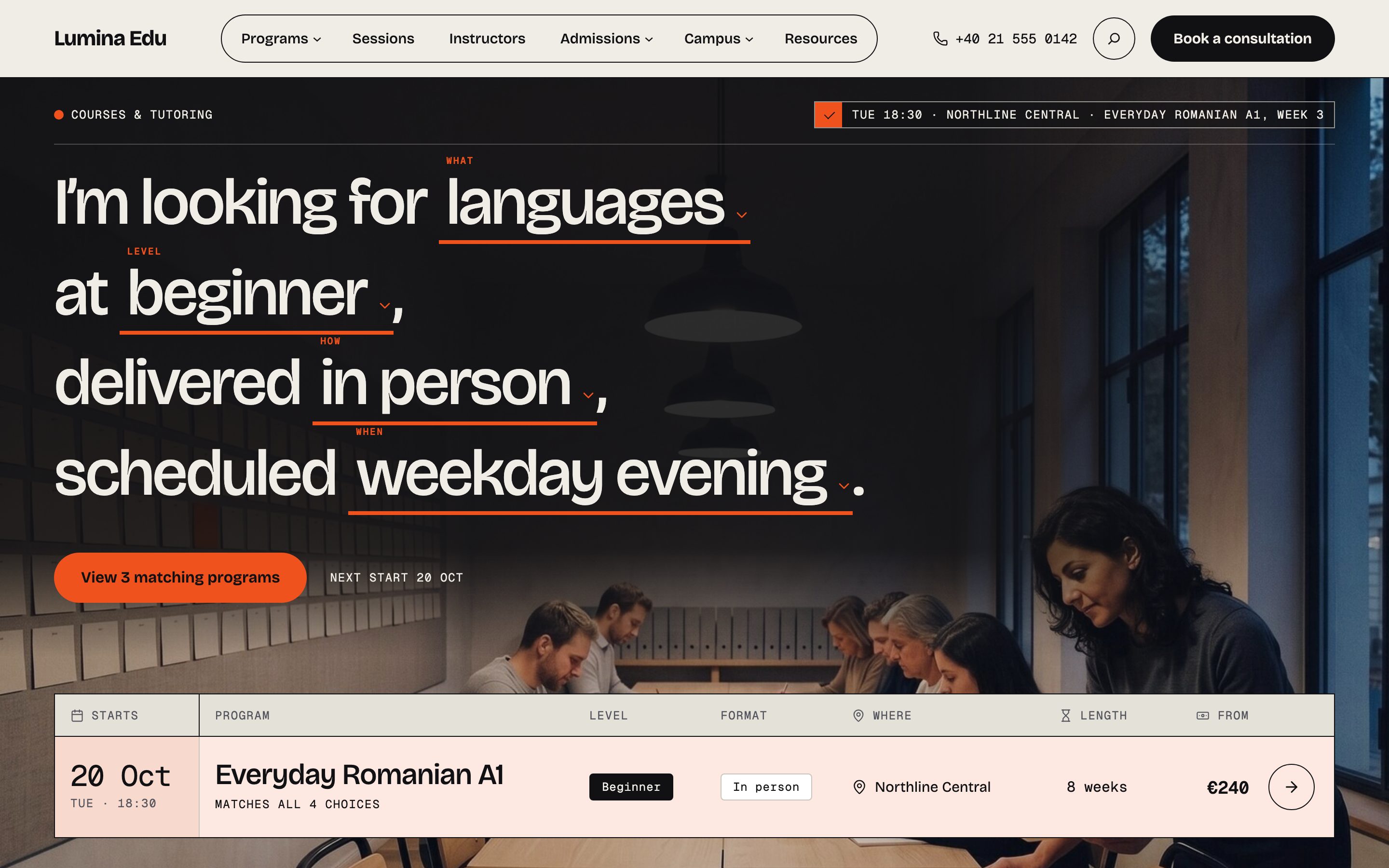
What 1.2.0 looks like
Version 1.2.0 is a redesign. The demo school, Northline Learning Studio, now has three home pages — Studio, Training and College — and fifteen inner pages in the menu, each opening on a title banner with a breadcrumb. Photographs are part of the design: every one sits in a ruled timetable slot with a day, time and room on its rail. The three homes and the pages walks through all of them.
What is in the download
Lumina Edu is sold on tailthemes.com. Your download is one zip, lumina-edu-package-1.2.2.zip.
It is not a theme: unpack it on your computer first.
| File | Purpose | Install in WordPress? |
|---|---|---|
lumina-edu.zip |
The theme | Yes, under Appearance → Themes |
lumina-edu-child.zip |
Optional child theme, for code of your own | Only if you need it, after the theme |
plugins/lumina-edu-core.zip |
The companion plugin: programs, sessions, instructors, departments, campuses, deadlines, Site details and the blocks that show them | Yes, under Plugins, or from Appearance → Install Plugins |
documentation/ |
This guide, for offline use | No |
licensing/ and changelog.txt |
Licences, credits and release history | No |
If WordPress says the theme is missing style.css, you uploaded the package. Unpack it and upload
lumina-edu.zip. Install and update has the details.
Your first 30 minutes
- Unpack
lumina-edu-package-1.2.2.zipon your computer. - Appearance → Themes → Add New Theme → Upload Theme: upload
lumina-edu.zip, then Activate. - Appearance → Install Plugins: install and activate Lumina Edu Core. It is recommended, never required. The theme works without it, but programs, sessions, instructors, the program finder, Site details and the demo import all belong to the plugin.
- You are taken to Appearance → Getting started. Complete Theme and plugin first.
- For a starter site, install One Click Demo Import from the same screen, then Appearance → Import Demo Data → Import Demo Data → Continue & Import. Wait for Import Complete! For a site that already has content, skip the import and build pages from the theme's page patterns.
- Open the three homes, Programs, Sessions and Instructors. Seeing Northline on all of them is the success check. See Demo import and reset.
- Fill in Settings → Site details: your telephone, email, address, opening hours, general questions and, if you use Contact Form 7, the enquiry form. See Site details.
- After an import, every Register, Book a consultation and contact action points at a
placeholder,
https://example.com/?lumina-edu-demo=…. It opens, but nobody is registered, booked or written to. Replace each one with your real service (Programs → Edit → Program decision details, and Site details). Appearance → Getting started → Before you go live counts the placeholders left. - Replace the demo's photographs with your own. They are for the demo only; see Photographs.
- Settings → Permalinks: choose a readable structure and Save Changes. Then complete one enquiry or booking while logged out and check that it arrived.
How the pieces divide the work
The theme owns presentation: templates, patterns, header, footer, colours, type, layout and motion. Lumina Edu Core owns the records — programs, sessions, instructors, departments, campuses, delivery options, deadlines and Site details — and the blocks that print them. Pages and posts stay ordinary WordPress pages and posts. Form, scheduling and learning plugins keep their own records.
With the plugin active, every section that states a record — a program, a price, a start date, a deadline, a session, a tutor, a campus, a count, the opening hours — reads it, and a dated row leaves the page when its day passes. With the plugin off, each of those sections shows a still example that names days and hours, never a date, so a theme-only site still looks close to the demo. Pattern and template reference lists both sides.
Switching theme keeps every record. Deactivating the plugin deletes nothing either. Deactivating and exporting says exactly what each step keeps.
The rest of this guide
| Page | What it answers |
|---|---|
| Install and update | Where the download comes from, installing the zips, updating later |
| Demo import and reset | Importing Northline, running it again, removing it |
| The three homes and the pages | Each home and inner page, title banners, the header and footer, choosing your front page |
| The finder, the board and compare | The sentence, the departure board and the comparison |
| Photographs | Where each photograph is set, the slot, the monogram, the demo's pictures |
| Programs and sessions | The program, location and dated-session workflow |
| Instructors and taxonomies | People, subjects, levels and formats |
| Site details | Telephone, email, address, opening hours, questions and the contact form |
| Registration, forms and privacy | The services you connect, and what leaves your site |
| Connecting your own services | A recipe per destination, and the calendar file that needs none |
| Campus catalog and migration | Departments, campuses, delivery options and admissions deadlines |
| Site Editor, styles and motion | Colours, fonts, templates, style variations and motion |
| Pattern and template reference | Every section you can insert, and what it shows with the plugin on and off |
| Accessibility, translation and RTL | What is built in, and what stays your job |
| Deactivating and exporting | What survives a theme switch, a deactivation and an uninstall |
| Tested versions | What was tested, on which versions, and when |
| Troubleshooting | The things that go wrong, and the fix |
| Support, licence and credits | Where to ask for help, your licence, updates and credits |
Requirements
- WordPress 7.1 or later.
- PHP 7.4 or later. Use a PHP version that still receives security updates.
- A current browser for your visitors: Chrome, Firefox, Safari or Edge.
- HTTPS on the site, and a writable
wp-content/uploadsfolder. - Outbound HTTPS to tailthemes.com, used to install the companion plugin from the dashboard, to fetch the demo photographs during an import, and for the plugin's update check. Each has an offline route; see Install and update.
- For the optional demo import: at least 256 MB of PHP memory (
memory_limit) and 300 seconds of execution time (max_execution_time). Your host can raise these; after the import they can go back.
Getting help
If this guide does not answer your question, see Troubleshooting, then Support. The Support button in Appearance → Getting started opens the same page.