Programs and sessions
Create your first offering
- Programs → Program terms → Locations: enter a reusable public label such as “Online” or “Central campus”, then choose Add location.
- Instructors → Add instructor: enter the name as the title, biography in the editor, excerpt as the short directory summary, and portrait in Featured image. In Instructor details, use the Profile, Expertise and Relationships tabs to complete the public facts without scanning one long form. Assign Subjects, then choose Publish.
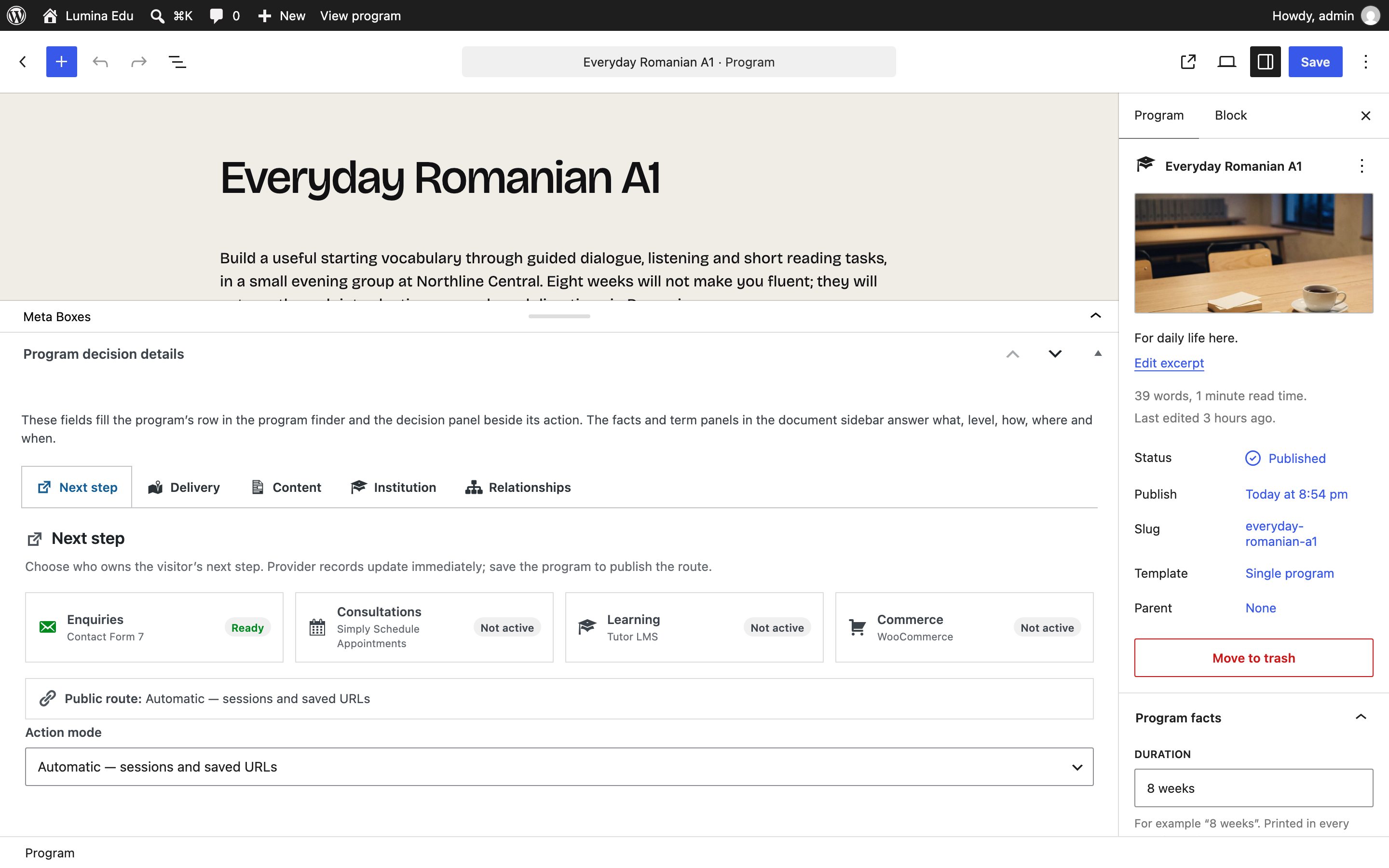
- Programs → Add program: enter title, page copy and excerpt. In the editor sidebar assign Subjects, Levels, Formats, Locations and Schedule bands. In the Program facts panel of the document sidebar, above the term panels, enter the duration, the starting price label and the primary instructor. Below the editor, Program decision details holds the next step, delivery addresses, outcomes, schedule, FAQ, institutional data and relationships in five task tabs. Then choose Publish.
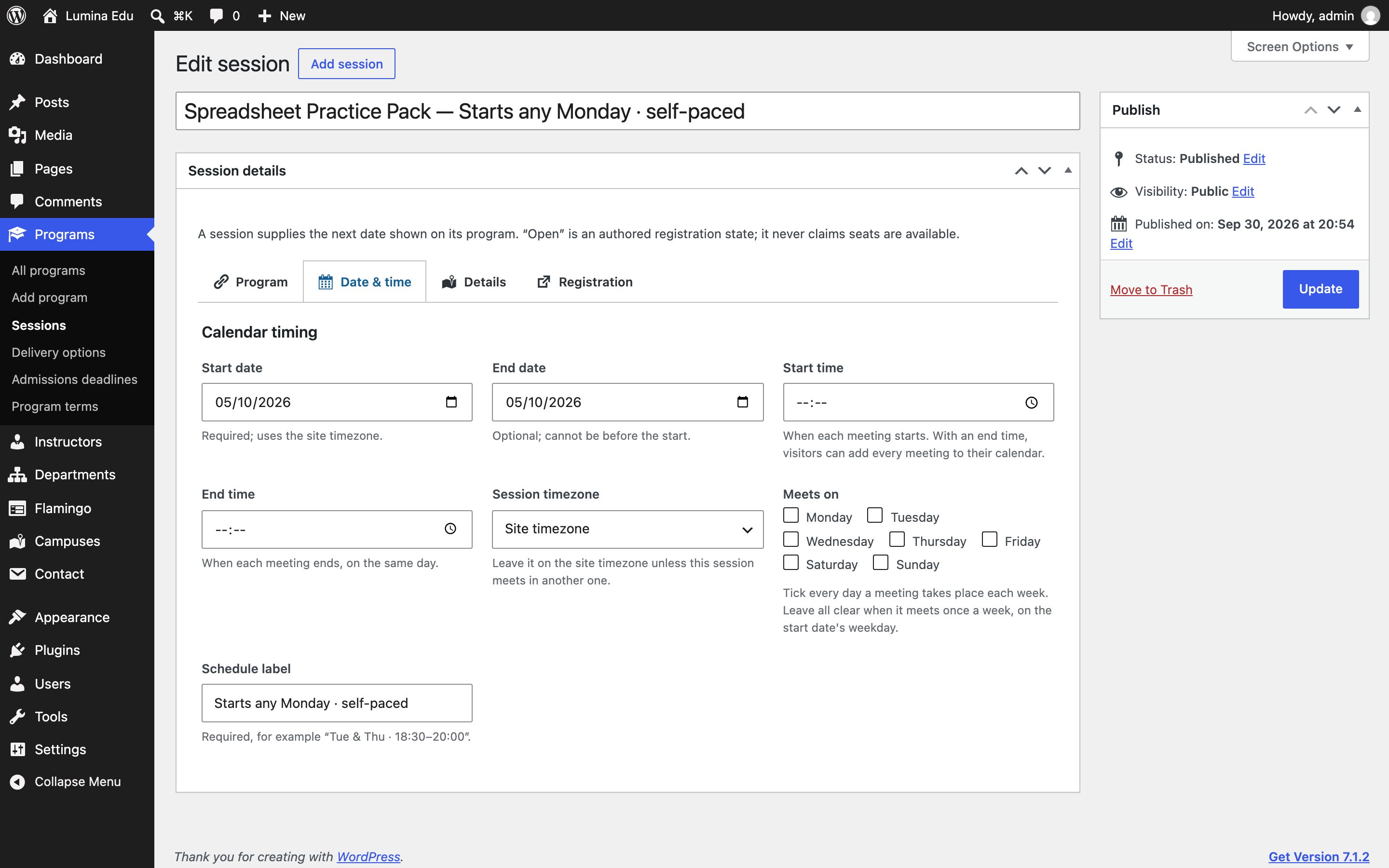
- Programs → Sessions → Add session: give the admin-only record a recognisable title, then use the Program, Date & time, Details and Registration tabs, then choose Publish.
- Open the public program page in a private window. Confirm the facts, instructor, next date and external destination match what you entered.
Create a program
Open Programs → Add program. Add a title and short summary first; those identify the program in results. Then complete the decision fields visitors compare.
| Field | Where visitors see it |
|---|---|
| Subjects, Levels, Formats, Locations and Schedule bands (document sidebar) | Program finder filters and program facts |
| Duration and Starting price label (Program facts panel in the sidebar) | Directory row and decision panel |
| Primary instructor (Program facts panel in the sidebar) | The program's instructor section, with the portrait, and the instructor's own page |
| Feature this program in curated lists (Program facts panel in the sidebar) | Leads the curated boards and the photograph mosaics, and is in the comparison Compare opens on |
| Featured image | The program page's banner and every section built of pictures; see Photographs |
| Learning outcomes | Program detail |
| Schedule | Program detail schedule; each row has Label and Value |
| Program FAQ | Program detail FAQ; each row has Question and Answer |
| Next-step mode and Provider record | Enquiry, consultation or Tutor LMS course route when its provider is available |
| Registration URL and Consultation URL | Fallback external-action region when no mapped provider can run |
Sessions can also store a Start time, an End time, an IANA Session timezone (leave it empty to use the site's) and the days they meet under Meets on, all under Date & time. A session with both times offers visitors an Add to calendar file: one weekly event on the meeting days until the end date (see Connecting your own services). A session without times keeps its authored schedule label and shows no calendar button. Lumina does not infer times or days from the schedule label.
Subjects, levels, formats and locations in the sentence
The program finder writes a term inside its sentence in lower case — "I'm looking for languages at beginner". A term that is a proper noun, such as English or IELTS, should keep its capitals: open it under Programs → Program terms, tick Keep capitals in the program finder sentence and save. The facts strips and program pages print every term as you wrote it.
Vocabularies for editors only
Schedule bands, Awards, Study levels and Admissions audiences sort and describe records for editors and feed the program finder's When question; they have no public archive page of their own. Subjects, levels, formats and locations each have a public program archive.
A featured image is optional. The board, the lists, the compare page and the program's own page are complete without one; a picture adds the program to the sections built of photographs (Programs with a picture, the planner with pictures). Leave it empty rather than using a placeholder picture.
Price is a text label so you can write it truthfully: the amount on its own, or From and an amount when there is more than one fee. Leave it empty when no public price exists. Do not use “starting at” unless that wording is accurate.
Outcomes explain what the program covers; they are not guarantees. FAQ answers should identify fees, prerequisites or third-party responsibilities precisely.
Writing a program page learners can hold you to
Write the page as your school, to the learner. Describe the scope — what happens in the room, for how many hours — rather than an outcome: eight weeks of evening Romanian can promise sixteen hours of guided conversation, not fluency. State requirements plainly (a laptop, a previous level, preparation between sessions) before anybody registers. Keep dates, fees, cancellation terms and how details are used on the page or one click from it. Keep notes addressed to yourself out of public copy: a line such as "demonstration profile" or "the provider is responsible for…" reads to a learner as an unfinished site.
Give each program the formats it is actually taught in and the places its sessions meet. A group that runs in the room and on a meeting link at once is Hybrid with both Locations, not also In person and Live online. Each session's Location note should name the same places as the program's Location terms, so the board, the program page and the compare view say the same thing. Write a weekly Schedule label that names the day ("Tuesdays · 18:30–20:00") and give the session a start date on that day.
The program page
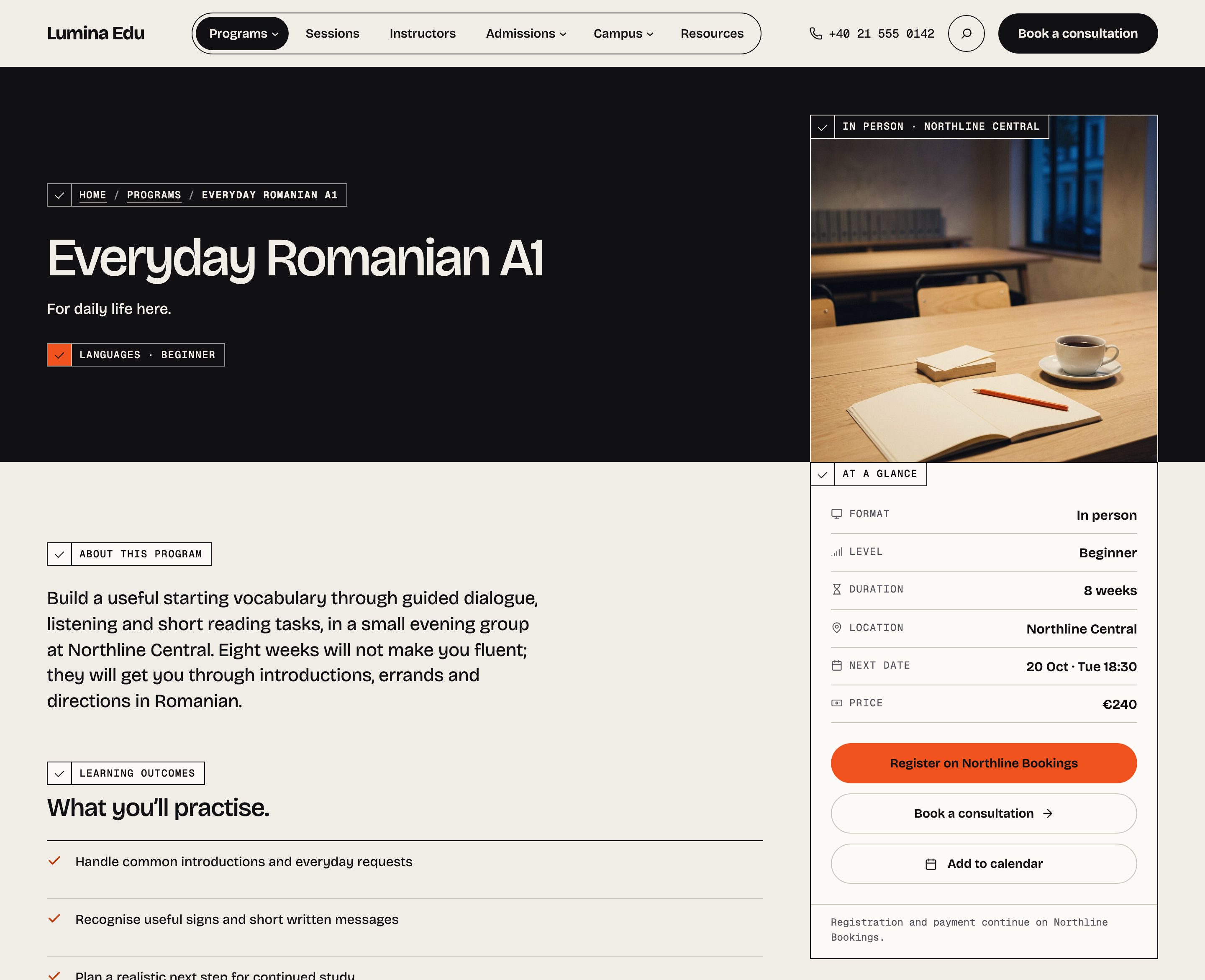
Each program has its own page at /program/<slug>/. It opens on the program's featured image in an
ink band with the breadcrumb, then the decision panel — the six facts as one ruled strip, the main
action naming where registration continues, a consultation action and, for a timed session, Add
to calendar — the outcomes and the shape of the week, the program's instructor with the portrait,
its sessions as a ledger, its delivery choices and reviewed deadlines where it has them, its
questions, related programs and the next starts.
Add a session
Open Programs → Sessions and choose Add session, then complete the exact fields Program, Start date, End date, Schedule label, Format note, Location note, Price label override, Registration or consultation URL, Action and Published status. “Registration link provided” is an authored state only; Lumina Edu does not know seat inventory.
The session may override the program price and action URL. Otherwise it inherits the relevant program destination. A missing next date displays “No session date published” and offers the consultation route when one exists.
An end date before its start date or a session without a valid program is refused. Dates use the WordPress site timezone and are displayed through the site's locale.
A dated session is shown until its day passes, then it leaves the boards, the next starts and the ledger by itself, and the program's next session takes its place. This happens in the visitor's browser as well, so a page served from a cache does not keep a date that has gone. An open group stays on the week planner until its last meeting.
The Sessions page
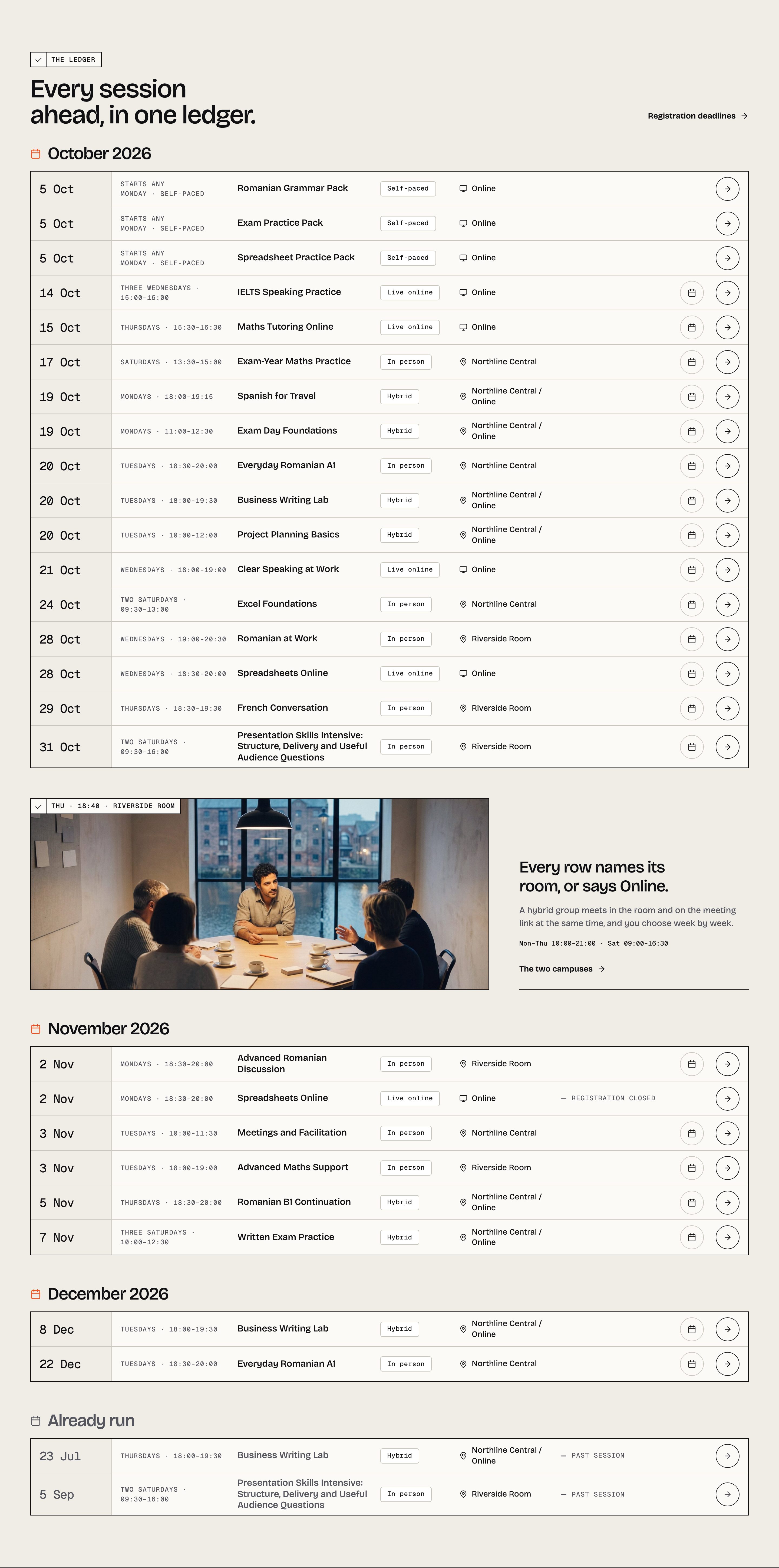
/sessions/ lists every session ahead as a ledger by month — date, program, schedule, format, place
and status in words — with the week's open groups on the planner under it and the tutors to close.
A session whose first day has passed but which is not marked Past stands under Already started.
Program, session and location workflow
Use this order for a new offering. It follows the same order a visitor reads on the front end:
- Under Programs → Program terms → Locations, add a reusable place such as Northline Central or Online. Keep room numbers and joining instructions out of the term name.
- Add the instructor under Instructors and assign the relevant Subjects.
- Add the program, assign its Subject, Level, Format, Location and Schedule band in the document sidebar. Enter the duration, price and primary instructor in the Program facts panel in the sidebar, then the destinations, outcomes, schedule rows and FAQ in Program decision details.
- Check the primary instructor. Leave it empty when nobody is confirmed; Lumina Edu omits the instructor region rather than inventing one.
- Under Programs → Sessions, add each dated delivery. Choose the program, dates, schedule and authored Open, Closed or Past state. Add a session-specific room or joining note only when it is more precise than the program's Location term.
- View Programs, the program detail and Sessions while logged out. Confirm the same location, next date, status and action destination appear in the expected order.
The distinction matters: Location is a controlled term used by the program finder and program facts, while Location note belongs to one dated session. Lumina Edu includes no map, geocoder or live room inventory.
Daily session maintenance
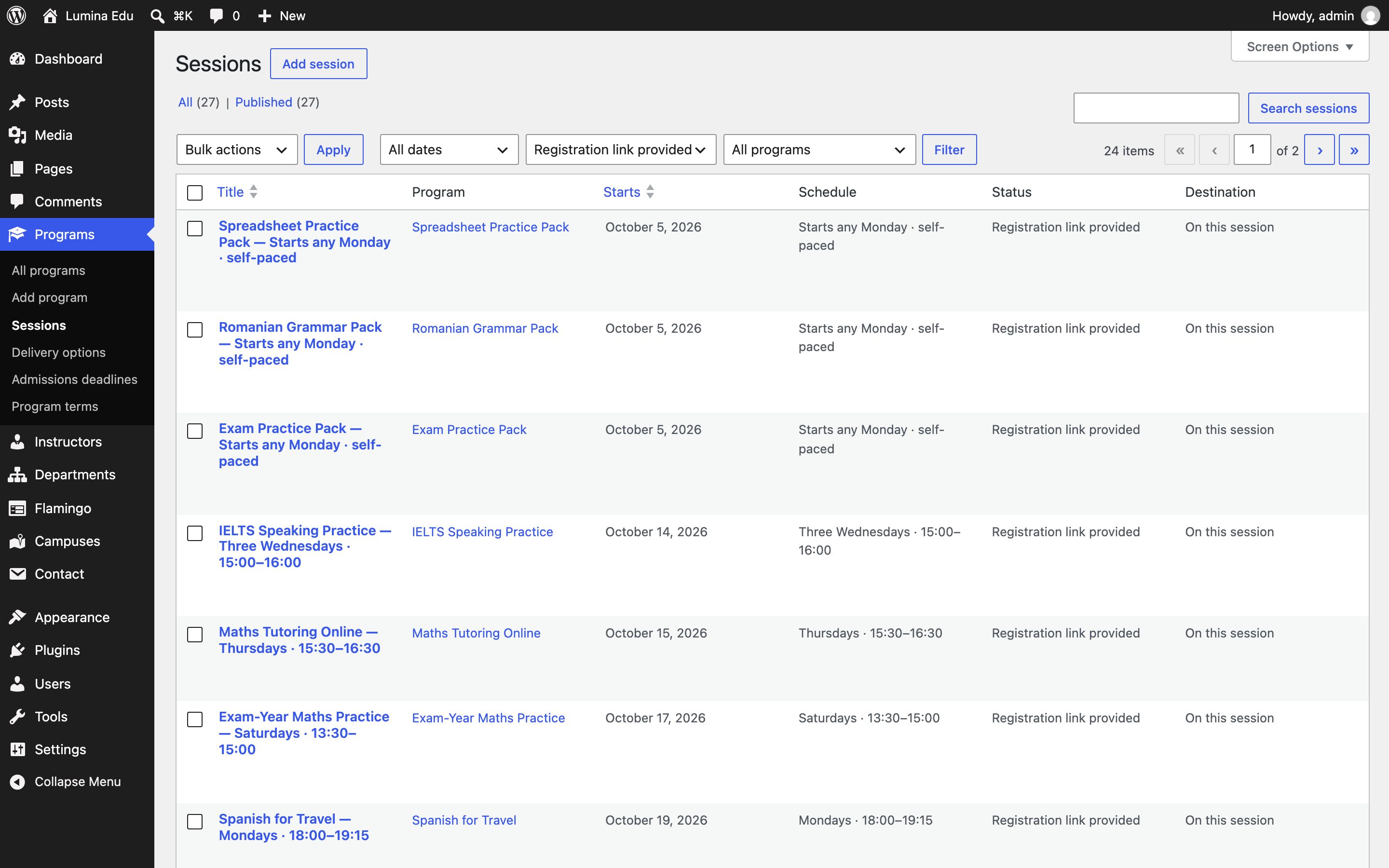
Open Programs → Sessions. Choose a value in All statuses and/or All programs, then choose Filter. Select the Starts column heading to reverse date order. Scan Destination: On this session means the session overrides the program URL, From the program means it inherits one, and Not set requires attention. Use the row action Close registration or Mark past to correct a single row without opening it. The warning open · date passed is a prompt to review; Lumina Edu never changes the authored status automatically.
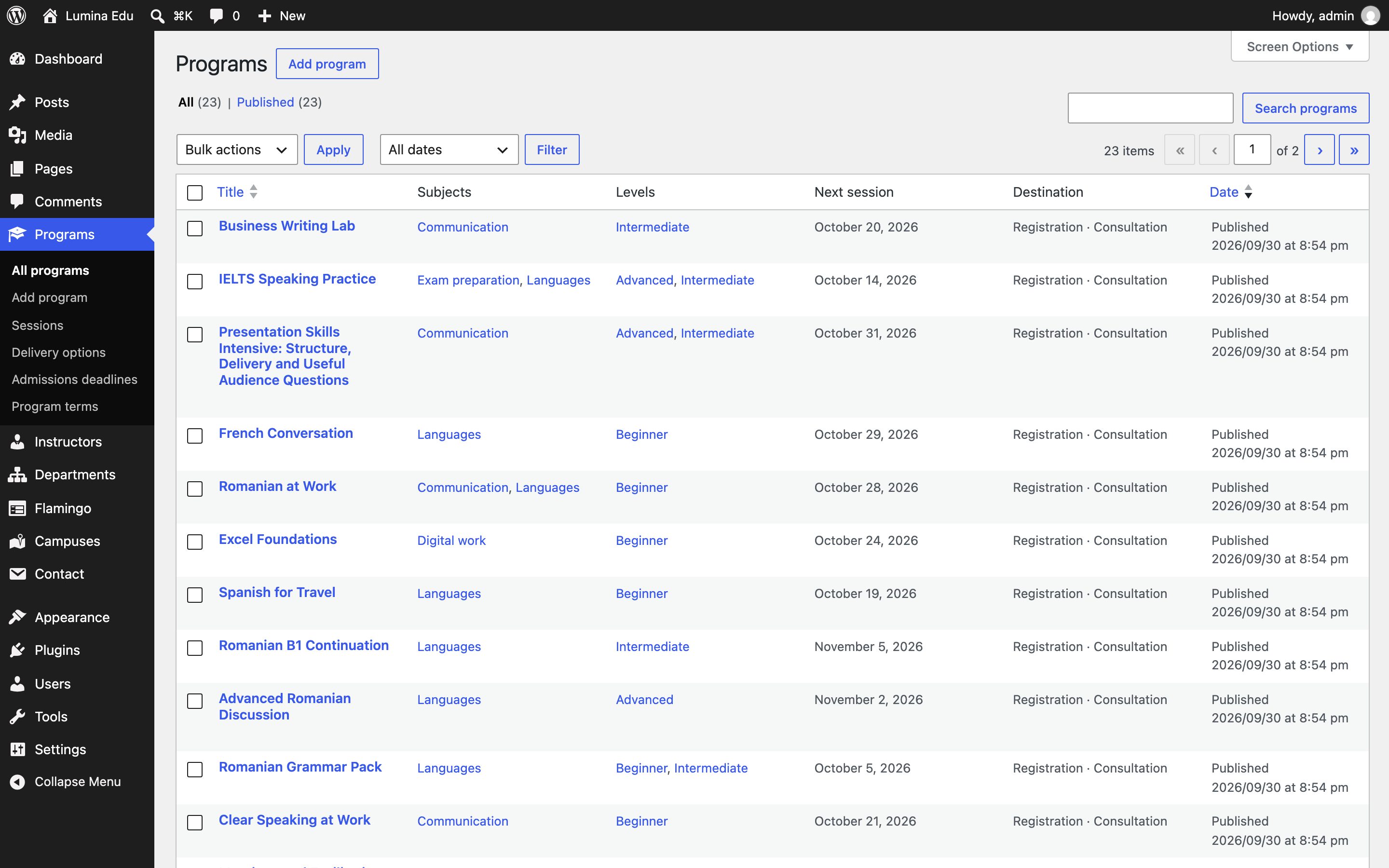
Open Programs → All programs to scan Subjects, Levels, Next session and Destination. None published or Not set identifies the records to finish before launch.
External actions and launch check
Use only complete https:// or http:// destinations you control or have permission to use. The
interface names the handoff before the visitor leaves. Test each destination logged out and on mobile.
No successful enrollment, payment or message is implied by clicking the link.
After importing Northline, every registration, consultation and contact button points at a
placeholder address that starts https://example.com/?lumina-edu-demo=. It opens example.com and
registers nobody. Open Appearance → Getting started: its Before you go live step counts
every program and session destination that still points at example.com. The step is complete only
when the count reaches zero. It links directly to both record lists and the scoped demo reset.
Related programs
Automatic relationships rank programs that share a subject and a level first, then a subject, then only a level. You can set a manual ordered list when a curated relationship is more useful. If a related record is removed, the region omits it cleanly. The Northline demo sets a manual list of three on every program, ranked the same way, so the region shows the same programs on every visit.