The four editing tasks
The four things an owner actually does. Each one is the whole job, in order, with the screen on the left and the field on the right. The same four are inside your site at Settings › Site details › Guide.
1. Update a dish
Its name, the line under it, its diet marks and which services it is on.
| What you do | Where |
|---|---|
| Open the dish. | Dishes › the dish |
| The title is the name; the excerpt is the line under it. | Title · Excerpt |
| Set the letters and the services it is served at. | Dish details › Dietary, Dayparts |
| Pick the division it prints under. | Sections |
| Update. The footer's freshness stamp moves on its own. | Update |
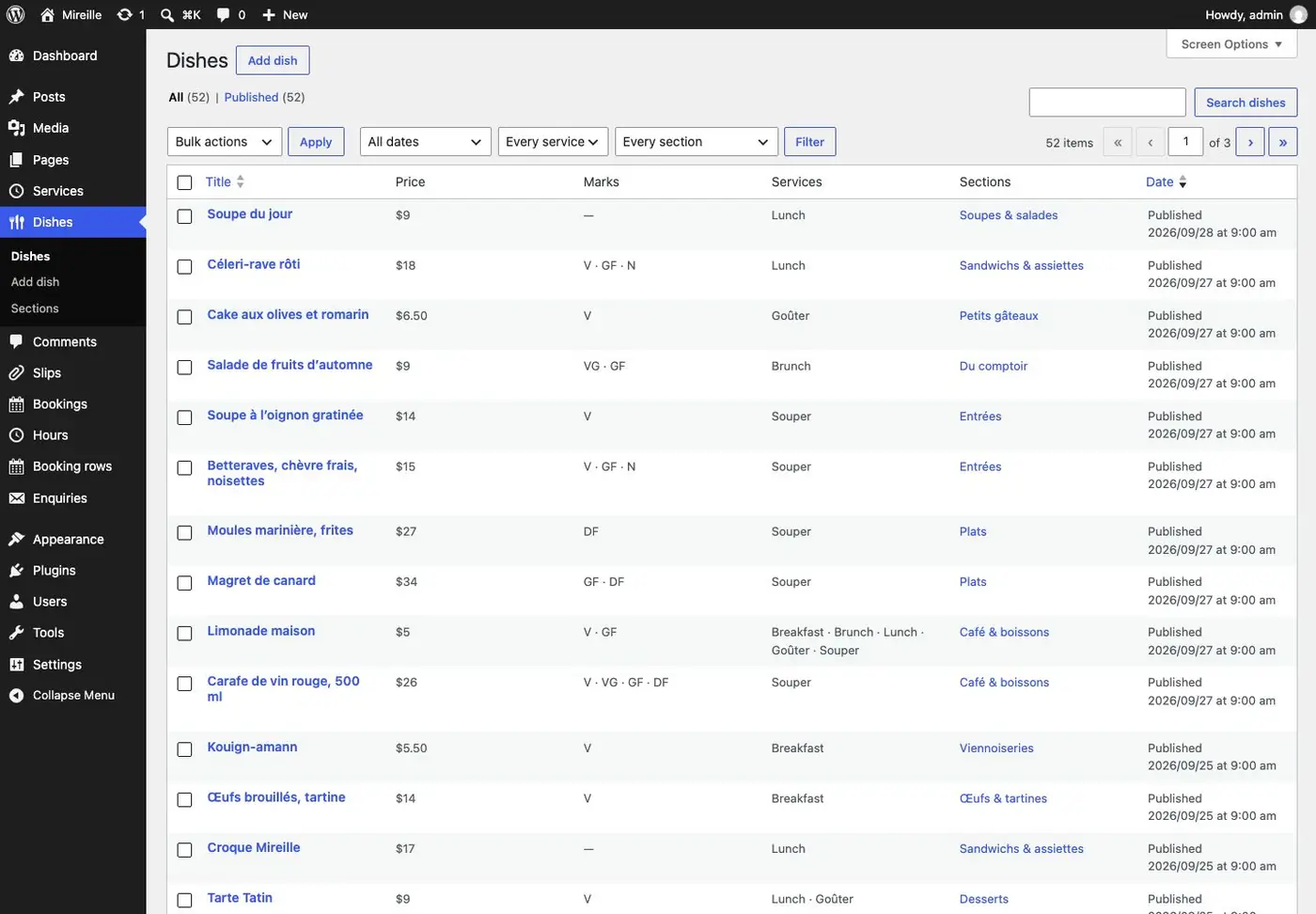
Dietary marks are V vegetarian, VG vegan, GF gluten-free, DF dairy-free — and N, which
means contains nuts. N is an allergen warning, not a diet, so it is never a filter button and
never appears in structured data as something to recommend.
2. Change a price, or change it for today only
For good, or for one service only, without touching the printed card.
| What you do | Where |
|---|---|
For good: open the dish and set the price in the site's currency: 17, or 4.25 when there are cents. It is stored as cents and prints as $17 or $4.25. |
Dishes › the dish › Dish details › Price |
| Add-ons carry their own price, in the same panel. | Dish details › Add-ons |
| For today only: post a slip instead and leave the dish alone. | Slips › Post a slip › Kind: Instead |
| Put today's price on the slip's line and close its window. | Lines · Showing from · Until |
| When the window closes the row is the truth again. Nothing was deleted. | Slips |
Whole amounts lose the cents: a printed card writes 17, not 17.00. The currency symbol, its side
and the decimal separator are one site fact you state once.
3. Replace an image, and keep its crop
A new plate, and the point in it the crop has to keep.
| What you do | Where |
|---|---|
| Set the dish's row thumbnail. | Dishes › the dish › Featured image |
| Drag the crop point onto the food, so the small plate keeps it. | Dish details › Focal point |
| Set the dish large in the band of four plates. | Dish details › Featured, and Plate photograph |
| A service's photograph is set with the service, not with a dish. It stands beside the served card on the home page. | Services › the service › Featured image |
| A section's photograph opens that section on the card. | Dishes › Sections › the section › Photograph |
| A slip's photograph is taped up with it in Today's changes. | Slips › the slip › Featured image |
| A photograph that is part of a page: a hero, a band, a portrait, a banner. | The page › select the Image or Cover › Replace |
Watch for: a hero or a title banner sets its words on the dark side of the photograph. Replace one with a lighter picture, or move its focal point, and the words can stop being legible. Nothing checks this for you: look at the page at 390 and at 1440 before you publish.
Photographs has every kind of picture and where it is set.
4. Point a visitor at a reservation
Which services take a booking, and where the button sends them.
| What you do | Where |
|---|---|
| Set the mode, and the page it sends people to. | Settings › Site details › Booking › Mode, URL |
| Set where one table ends and a group enquiry begins. | Booking › Party max, Group min, Group email |
| Mark which services take a booking at all. | Services › the service › Bookable |
| The header's own action is a Button block in the header part. | Site Editor › Patterns › Template parts › Header |
| To change the written policy for one service today, post a Booking slip. Its normal bookable setting does not change. | Slips › Post a slip › Kind: Booking |
Watch for: without Reef Bookings the site never shows live availability and never confirms a table. Setting the booking mode to provider mounts a third-party loader, which is a script, which sets cookies — and the sentence on your notices page saying there is nothing to consent to stops being true that day.
See Booking, orders and enquiries for what each of the modes renders.
And one more: sign a journal note
A post is signed with the name of the account that saved it, which is rarely the name that should be under it. Open the post, fill the Byline box with the name to print ("Élise Tremblay"), and Update. Leave it empty and the account's display name is printed, as before. The byline is a field, not an account: nobody needs a login to be credited.