Quick start
From the download to a slip on your home page that a logged-out visitor can read, in about twenty minutes. Everything below is in the order you should do it in, with the file names and the WordPress menu labels exactly as you will see them.
You need: a WordPress 7.1 site you can install a theme on, PHP 7.4 or newer, and your download from tailthemes.com.
0. Get the download (2 minutes)
Table and Type is sold on tailthemes.com. After the purchase, the licence mail and the confirmation page both carry a Download the package link, and tailthemes.com/account lists the licence with the same link for as long as you hold it.
The file is table-and-type-package-1.2.4.zip. It is the whole purchase, not a theme:
unpack it on your own computer first.
table-and-type-package-1.2.4.zip
├── table-and-type.zip          ← the theme. This is what you upload in step 1.
├── table-and-type-child.zip    ← the child theme, optional
├── plugins/
│   ├── table-and-type-core.zip ← the companion plugin, with the demo content inside it
│   └── reef-bookings.zip       ← the booking engine, optional
├── documentation/              this guide, offline
├── licensing/                  the GPL text and the asset credits
└── changelog.txt
1. Install the theme (2 minutes)
- Appearance › Themes › Add New Theme › Upload Theme.
- Choose
table-and-type.zipfrom the unpacked folder. Nottable-and-type-package-1.2.4.zip: WordPress answers that one with "The theme is missing the style.css stylesheet". - Install Now, then Activate.
The site now looks like a café with no content in it: every band, heading and action is there, with tinted stand-ins where the photographs go and typed rows you could edit by hand. That is the theme on its own, and it is deliberate. See what is static and what comes from the plugin.
2. Install the companion plugin (3 minutes)
The dishes, the services, the hours, the slips and the booking rows are content, so they live in a plugin rather than in the theme. Your data then survives a theme change, which is the point.
- A notice appears after activation. Follow Begin installing plugins, or go to Appearance › Install Plugins.
- Table and Type Core → Install → Activate. WordPress downloads it from
https://tailthemes.com/wordpress/plugins/table-and-type-core.zip. - On the same screen, install and activate One Click Demo Import. It is free, from wordpress.org, and it is what imports the demo in step 3.
- Optional: Reef Bookings, if you want the booking page to take tables itself. See Booking, orders and enquiries.
Nothing is forced. You can dismiss the notice and install plugins/table-and-type-core.zip from
your download by hand instead (Plugins › Add New Plugin › Upload Plugin), which is also the way
in when your server cannot reach ours.
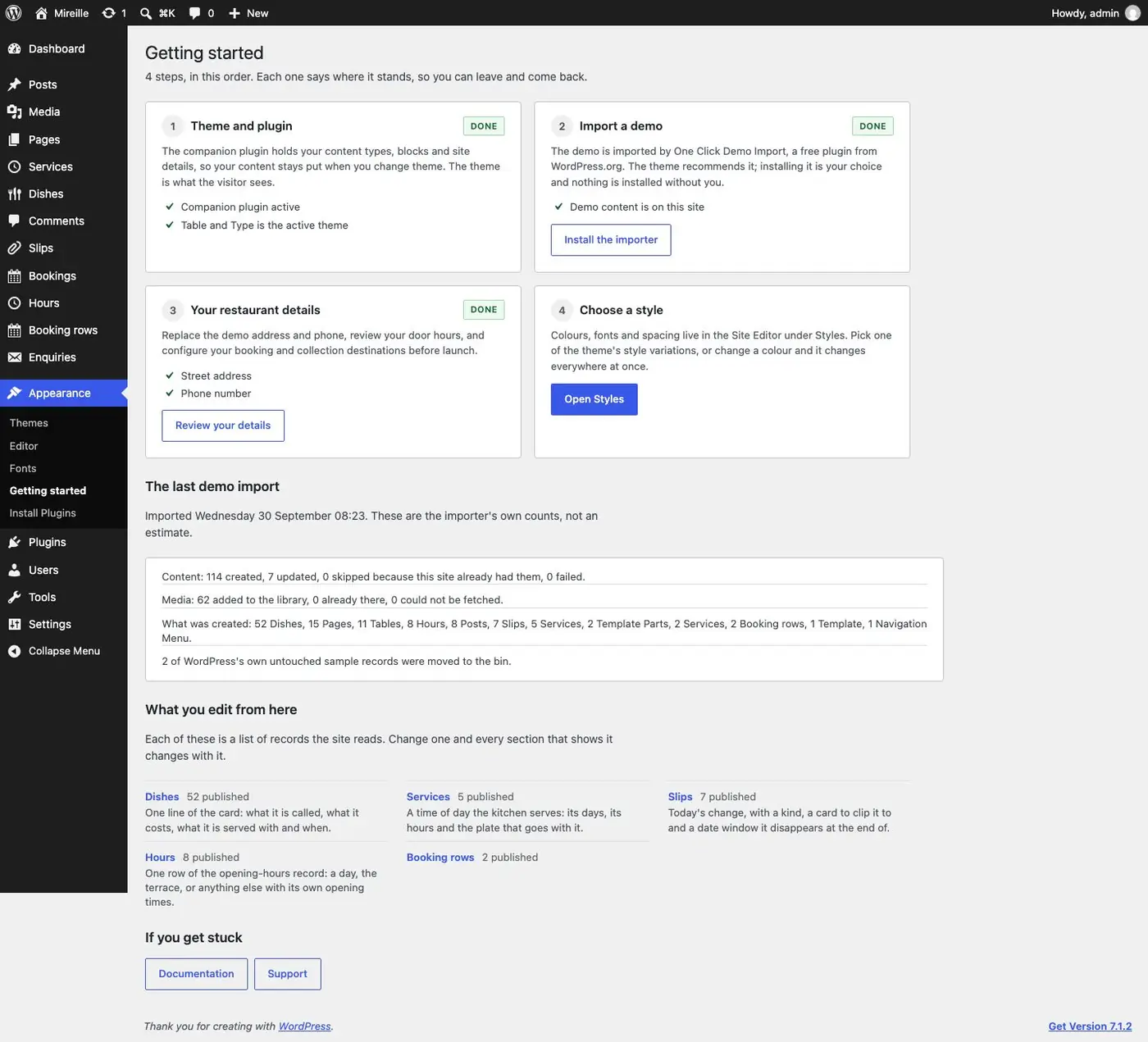
After activation, Appearance › Getting started lists the same steps this page does and marks each one as it is done.
3. Import the Mireille demo (5 minutes)
Mireille is an invented 34-seat all-day café in Montréal. It is one demo, filled deeply, with three home pages to choose from.
- Appearance › Import Demo Data.
- Pick Mireille, press its import button and confirm on the screen that follows.
What the import adds:
| It creates | Count |
|---|---|
Pages: three homes (home, home-bakery, home-bistro), menu, drinks, visit, book, groups, the-kitchen, about, faq, contact, notices, journal, style-guide |
15 |
| Dishes, sections, services | 52 · 12 · 5 |
| Hours rows (seven days plus the terrace) | 8 |
| Slips: five live, one expired, one still to come | 7 |
| Booking rows | 2 |
| Journal posts, signed by three people, in two categories | 8 |
| Photographs and drawings, fetched from our server | 62 |
| One navigation menu, the header and footer with their photographs, and the site facts at Settings › Site details |
It also sets home as the front page, journal as the posts page, notices as the privacy page,
the site timezone to America/Toronto and a 24-hour time format, because the demo's hours are
Montréal's.
About the photographs. The 60 photographs and 2 drawings are not inside your download. They are fetched from our server while the import runs, they are AI-generated, and they are there so the demo looks like the demo: replace them with your own before you go live. Photographs says how the import fetches them and what you see if it cannot.
When the import has finished, Appearance › Getting started says where the site stands and prints the importer's own counts.
Slip dates land relative to your import day, not to ours, so you get live slips on the home page whatever month you import in.
Open the site in a private window. The home page opens on the room, with a slip taped over the photograph's corner, the card for the service being served, and today's changes on the red band. Morning counter and After dark, in the line above the header (on a phone, at the end of the menu panel), are the other two homes.
4. Change one price (1 minute)
- Dishes in the admin menu, and open any dish, Croque Mireille say.
- Dish details › Price, in the site's currency:
18, or4.25when there are cents. It prints as$18or$4.25. - Update.
Reload /menu/ in the private window: the row carries the new price. The footer's
"Card last changed …" stamp moved on its own, because it is read from your dishes and never typed.
5. Post one slip, and read it logged out (3 minutes)
A slip is a dated sheet clipped to a card. It says what changed today, strikes the row it replaces when it replaces one, and comes down by itself when its window closes. Nothing it touches is ever edited.
- Slips › Post a slip.
- Kind: Today.
- Clipped to: a service, Lunch (midi) say.
- Lines: one line per row,
text | price. For exampleSoupe de poireaux, crème | 9. - Showing from: a few minutes ago. Until: this evening.
- Optional: Featured image, a photograph of the thing the slip is about.
- Publish.
Now the receipt. In the private window, where you are not logged in, reload the home page:
- the slip is taped over the hero photograph's corner, because it is now the newest one;
- it is on the red Today's changes band, with its photograph if you set one;
- on
/menu/, it is clipped to the lunch card, stamped with the time and your name.
Back in the admin, open the slip, move Until into the past and Update. Reload the private window: the sheet is gone from all three places and the card underneath is the truth again. Nothing was deleted.
If the editor refuses the save, it is telling you the slip would have rendered nowhere. The five refusals and their exact wording are on Slips.
6. Point the actions at something real (2 minutes)
Settings › Site details:
- Address and Coordinates: this is what the filled Get directions action uses. No map is embedded, ever; the link opens the visitor's own map app.
- Phone and Email: the header's telephone line is typed in the header part (Appearance › Editor › Patterns › Template parts › Header); the footer's is read from here.
- Booking & orders › Booking › Mode:
linkand the URL of your own reservation page, or install Reef Bookings and describe your room. The header's bordered Book a table and the/book/page both follow it. - Booking & orders › Order › Mode:
directand your ordering page, ornoneto hide the seam.
Read Booking, orders and enquiries before you choose provider mode:
it is the one setting on the whole site that loads another company's script, and it changes what
your privacy page has to say.
Before you go live
- Pick your home. Settings › Reading › Homepage takes any of the three; delete the two you do not use and their links in the header's top line. See The three homes.
- Delete the style-guide page. It is a page, never a template, it is in no menu, and deleting it takes nothing else with it.
- Edit the notices page. It is the one page you edit rather than delete. See Privacy.
- Replace the demo photographs with your own, on the pages and in the records.
- Rewrite the static sections in your own words: the kitchen, the room, the story, the questions. They describe an invented café.
- Re-measure the access facts (door width, washroom, tables) for your room.
- Read the allergen sentence under the card against what your kitchen will actually say.
- Set Group email to a mailbox you read, then send yourself one enquiry from
/book/.
Where to go next
- The three homes and the pages: what each page is built from.
- Where everything comes from: every band of the home page, the record that fills it and the screen that edits it.
- The four editing tasks: the four things an owner actually does.
- Troubleshooting: when a page is stale, a slip will not save, or dark mode flashes.